


Add WeblyChat to Shopify
Paste one code snippet into your Shopify theme using the Theme Editor. No app required. Your chatbot goes live in under 5 minutes.
Difficulty
Easy
Time
About 3 minutes
Requirement
Any Shopify plan (Basic or above)
Before you start: Copy your embed code from the Add to Site tab in your WeblyChat dashboard. You'll paste it in the steps below.
Open Your Shopify Admin
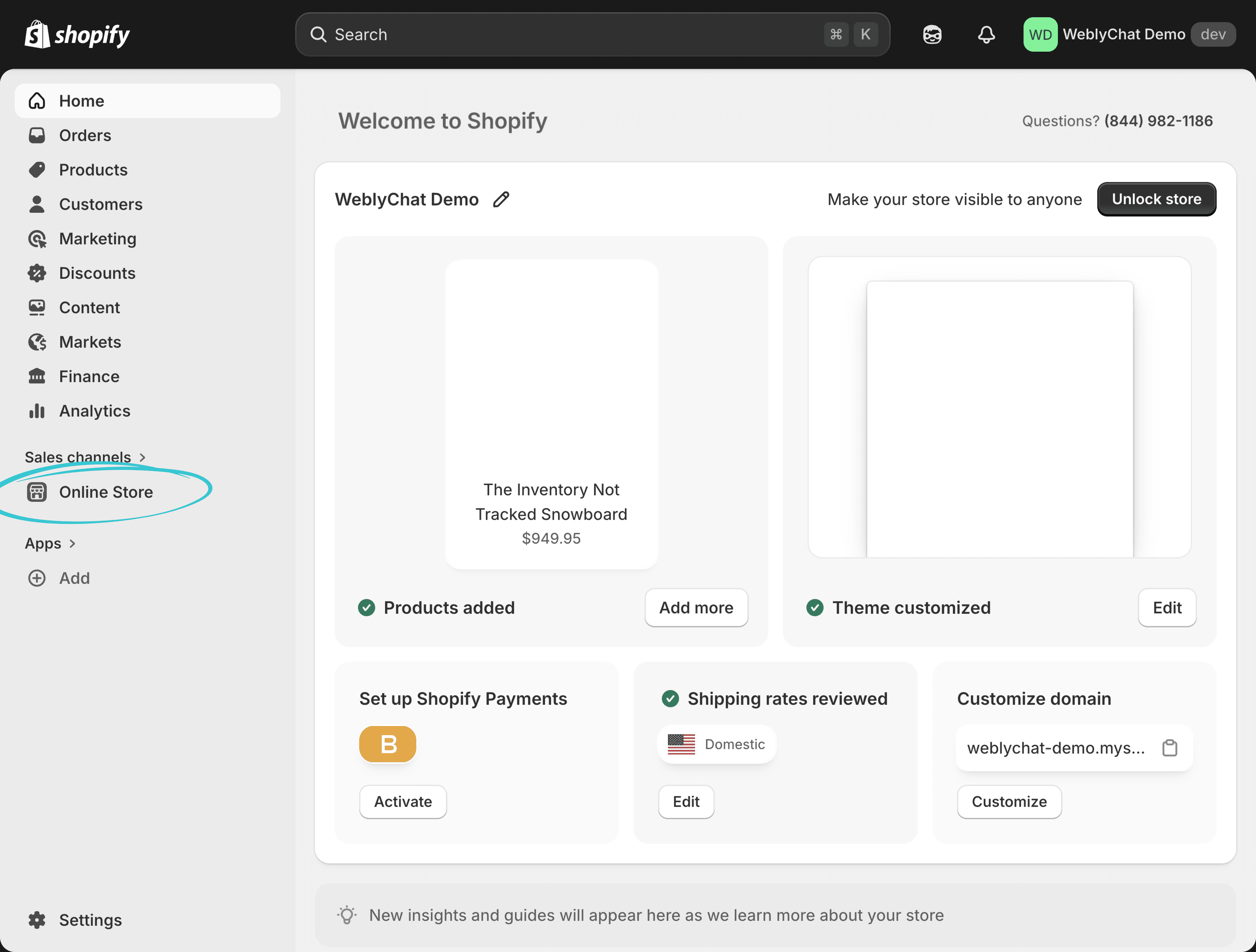
From your Shopify admin home page, click Online Store in the left sidebar under Sales channels.
Open Your Active Theme
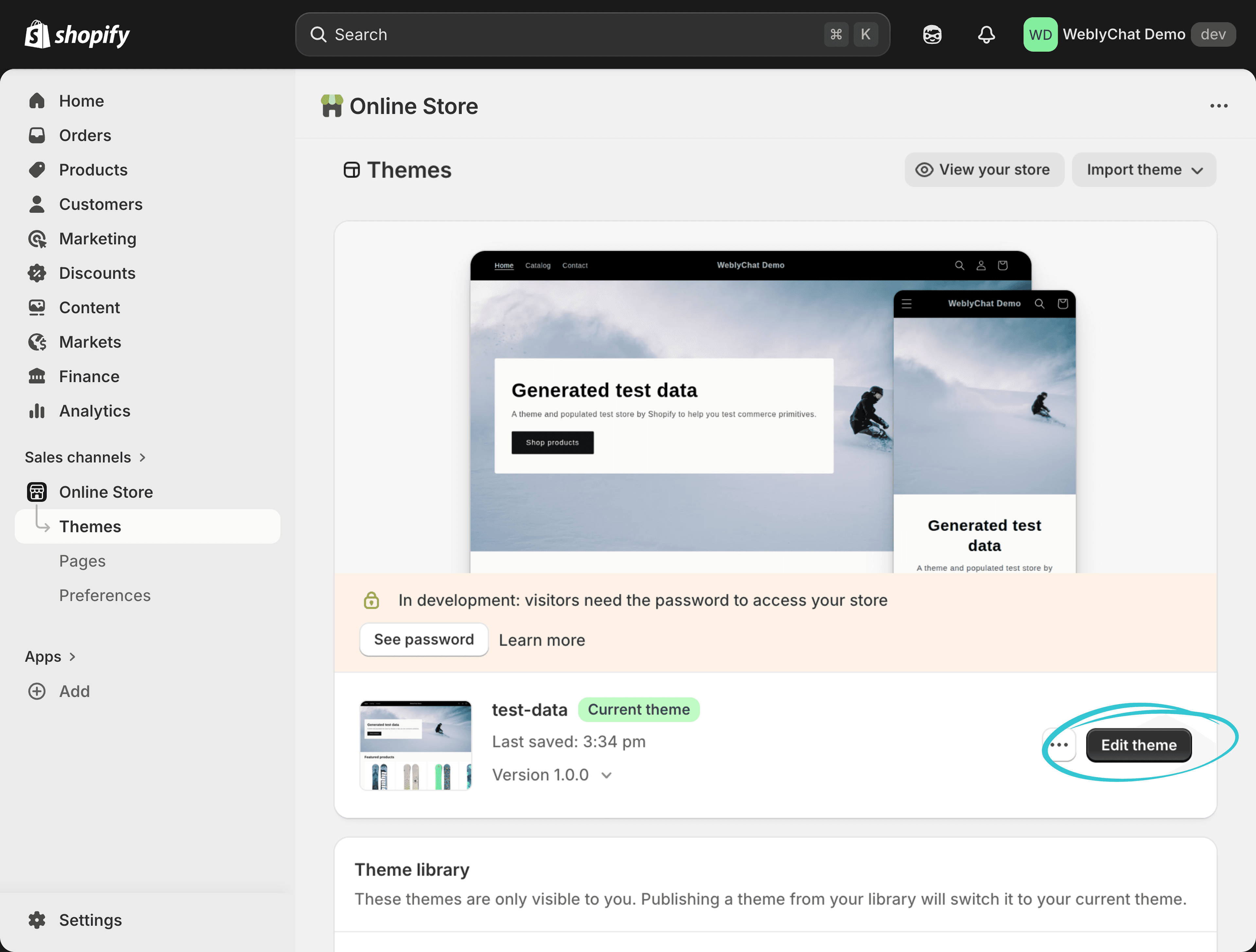
This takes you straight to Themes. Find your active theme and click Edit theme.
Add a Custom Liquid Section
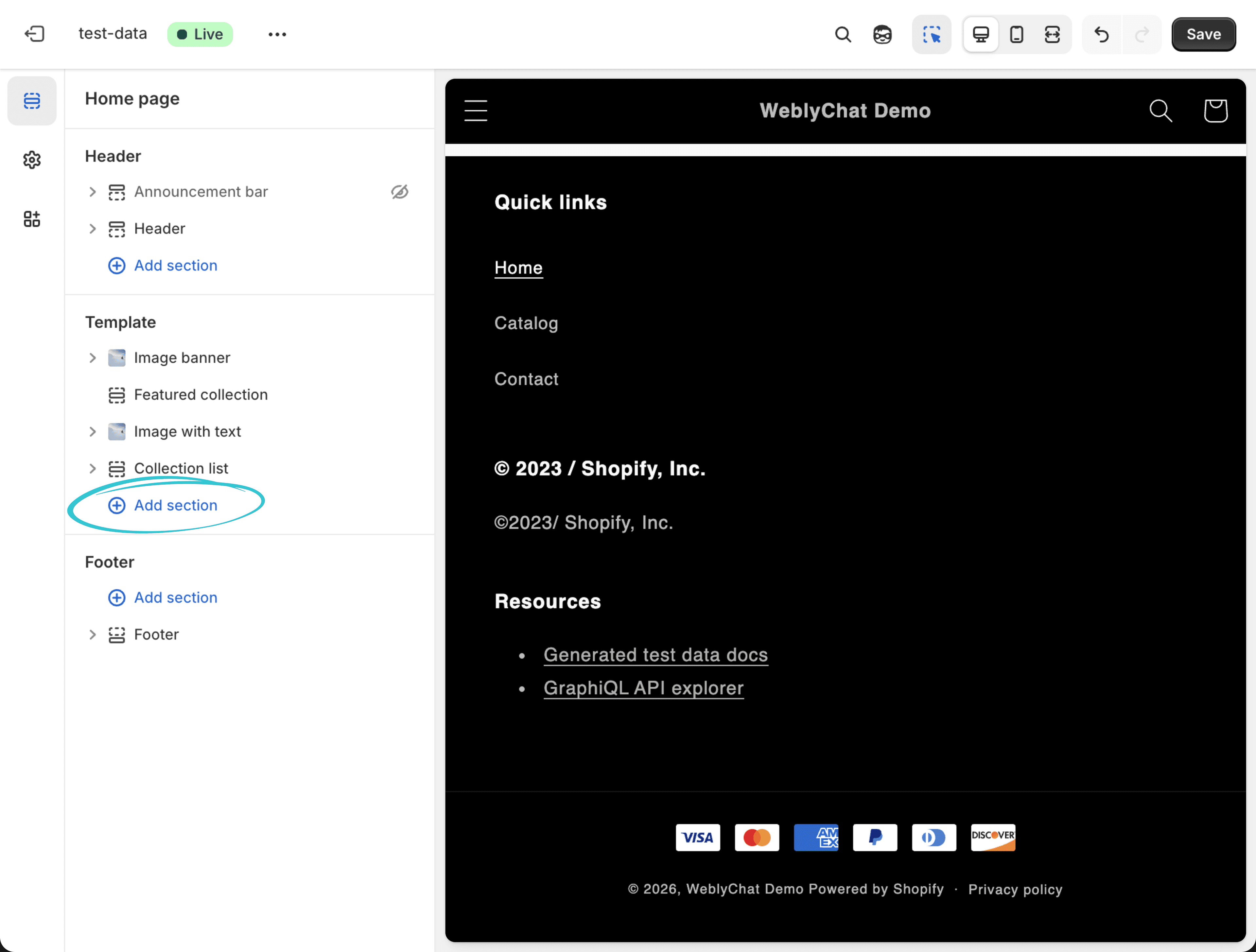
You are now in the Theme Editor. In the left sidebar, make sure you are on the Sections panel. Under Template, click Add section.
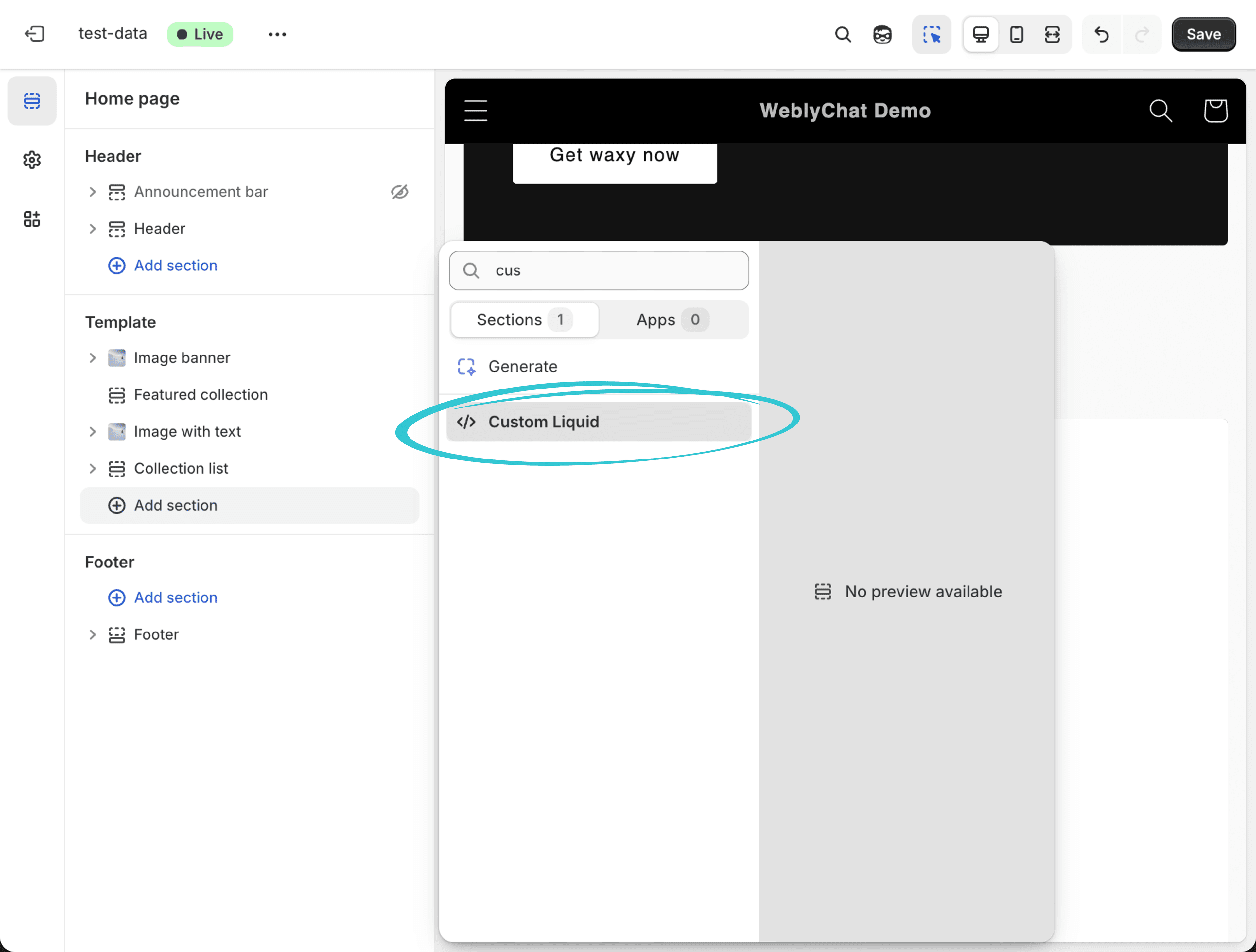
A search pop-up will appear. Type custom liquid and click Custom Liquid in the results.
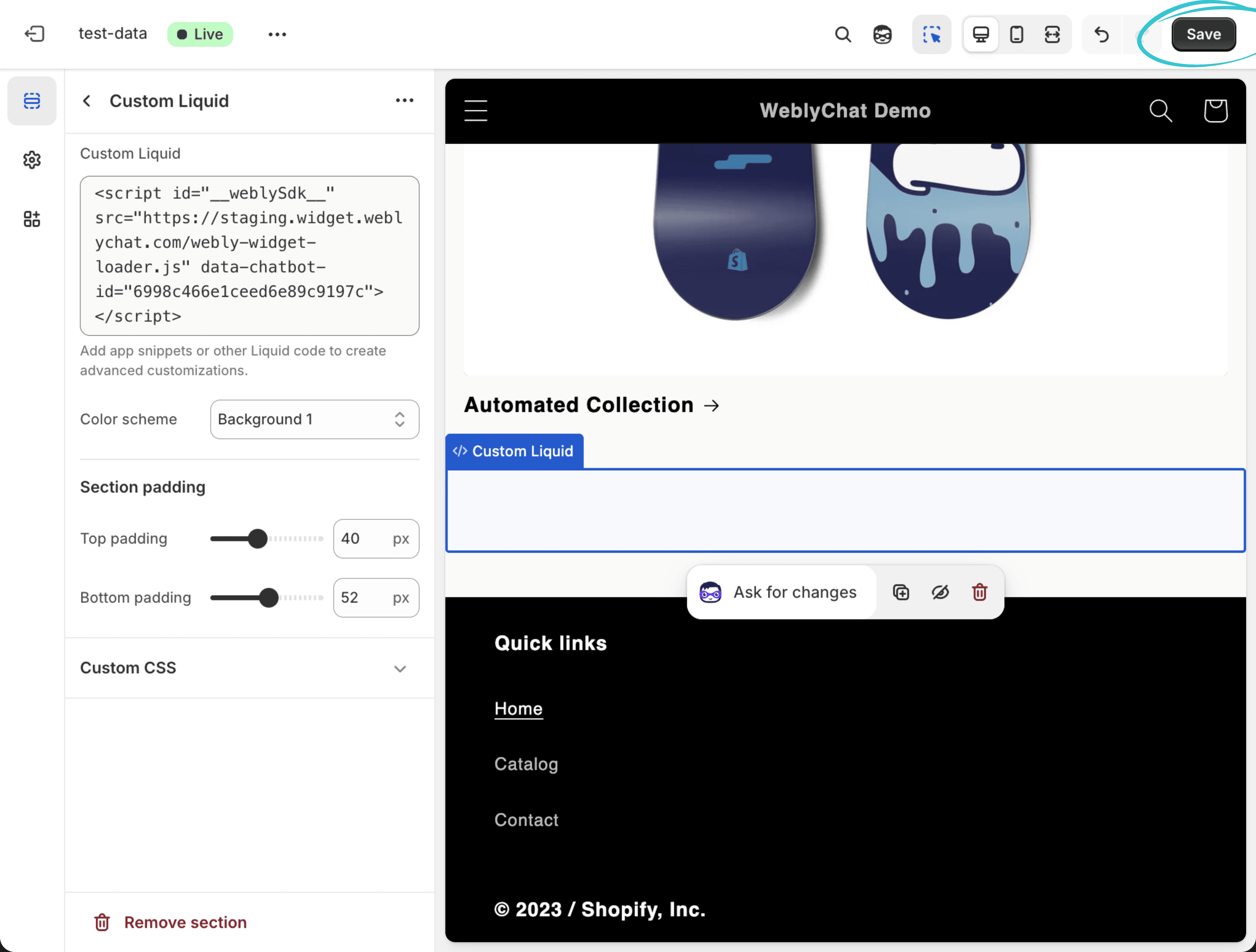
Paste Your Embed Code
The Custom Liquid panel opens on the left. Paste your WeblyChat embed code into the Custom Liquid text field. Then click Save in the top right corner.
You Are Live
Visit your Shopify store and you should see the chatbot widget in the corner. That is it.
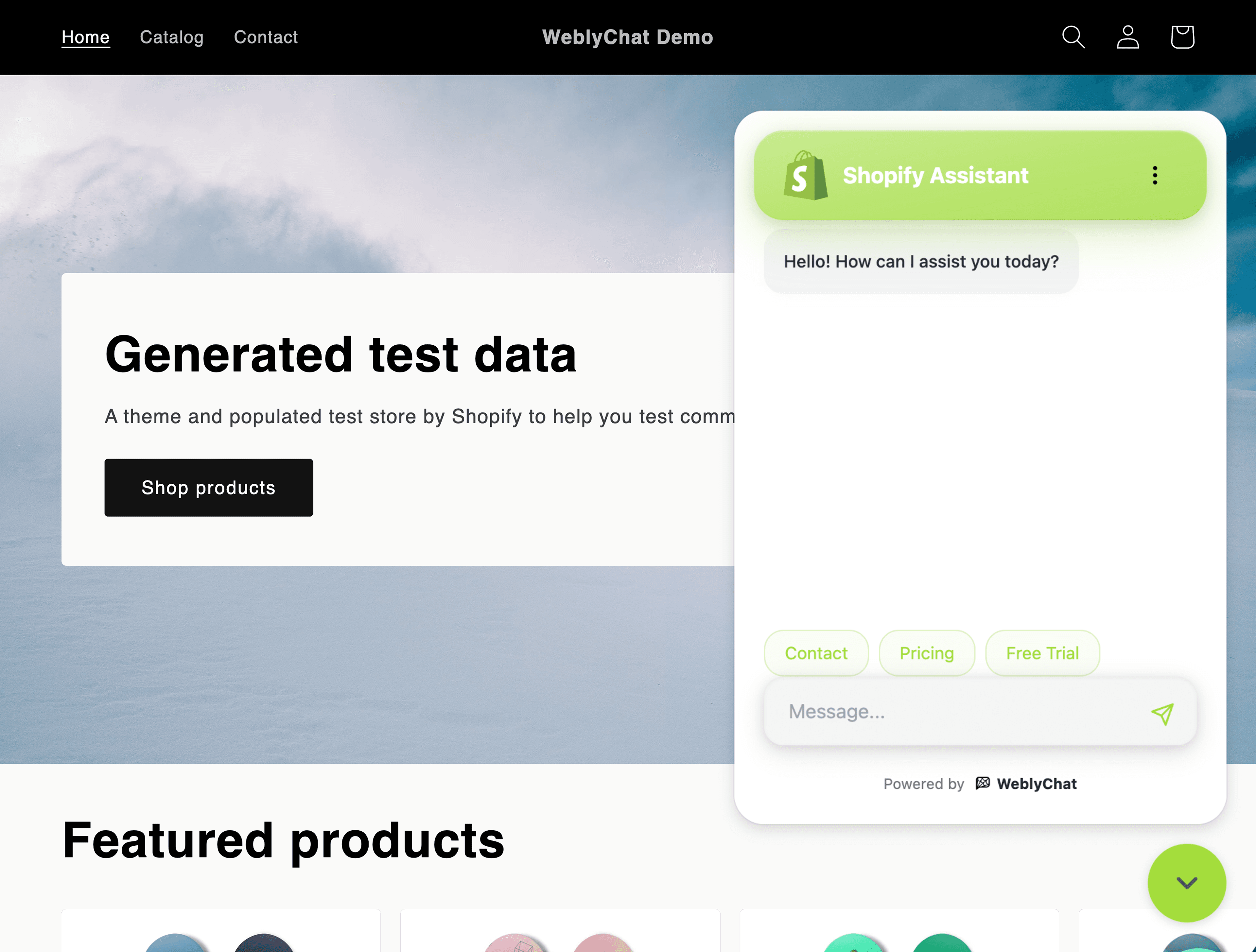
Any changes you make in your WeblyChat dashboard (colors, welcome message, training data) update instantly without touching your Shopify theme again. You only paste the code once.
The Custom Liquid section method works on all Shopify plans (Basic, Shopify, Advanced, and Plus) and on any theme, including Dawn, Debut, Impulse, Prestige, and custom themes. If you prefer, you can also paste the embed code directly into your theme's theme.liquid file just before the closing body tag using the code editor, but the Custom Liquid section method is safer and easier to remove later.
Still stuck?
We're happy to help you get set up.