




WordPressEasy Setup

Add a WordPress Chatbot to Your Site in Minutes

Paste one code snippet into WordPress and your AI chatbot goes live instantly. It trains on your website content, answers visitor questions 24/7, and works on any WordPress theme or hosting provider.

One code snippet, pasted once. Simpler than any traditional WordPress chatbot plugin.
Trained on your site. The AI reads your pages, posts, and content automatically.
Free plan available. Start today with zero cost and no credit card.
Free forever. No credit card required.
About 4 minutesNo coding required
CarePlan AI
Swing Lab
PHSS – You at Home
What It Does

What Your WordPress AI Chatbot Can Do

Answers Visitor Questions 24/7

Your WordPress chatbot responds instantly using your pages, posts, and product listings. Visitors get real answers about pricing, services, hours, and more without waiting for you to be online or submitting a contact form.

Trained on Your WordPress Site

Add your URL and the AI reads every page, post, and WooCommerce product on your site. Whether your content lives in Gutenberg blocks, Elementor layouts, or the Classic Editor, the chatbot learns it all.

Auto-Crawl Updates

Publish a new blog post or update a product page. On paid plans, the chatbot's knowledge updates automatically on a schedule. No manual re-training, no settings to change. It just stays current with your WordPress content.

Built-In Contact Form

Visitors can message you directly through the chat widget without needing Contact Form 7, WPForms, or any other form plugin. Emails go straight to your inbox. Available on paid plans.

Brand Customization

Match whatever WordPress theme you are running, whether it is Astra, Divi, GeneratePress, or a custom theme. Customize colors, logo, welcome message, suggested prompts, and more. The chatbot looks like it belongs on your site.

Setup

Live on WordPress in 3 Steps

1

Sign Up and Train

Create a free account and enter your WordPress URL. The AI scans your entire site in seconds.

2

Paste One Snippet

Copy your embed code and paste it into the Footer section using the free WPCode plugin. One line of code.

3

Go Live

Save your changes. Your AI chatbot appears on your WordPress site within minutes.

Compatibility

WordPress Compatibility at a Glance

Works With Any WordPress Theme

WeblyChat loads as a lightweight script that sits on top of your theme. It works with Astra, GeneratePress, Divi, Elementor themes, Kadence, OceanWP, and every other WordPress theme. No theme-specific configuration needed.

Any Hosting Provider

WordPress.org self-hosted sites on any provider work perfectly: Bluehost, SiteGround, WP Engine, Cloudways, GoDaddy, Hostinger, and more. The embed code is the same regardless of your host.

No Plugin Conflicts

WeblyChat runs as a lightweight external script, not a heavy WordPress chatbot plugin. It does not add database queries or conflict with your existing plugins. It works alongside WooCommerce, Yoast, Elementor, and any other plugin you have installed.

Mobile and Desktop

The chatbot widget automatically adapts to mobile and desktop views on your WordPress site. No separate configuration needed for responsive behavior.

Page Builders Supported

Whether you use Gutenberg, Elementor, Divi Builder, WPBakery, or the Classic Editor, the embed code works the same way. Page builders do not affect the chatbot.

Site Speed Impact

WeblyChat loads asynchronously, meaning it does not block your WordPress pages from rendering. Your site speed and Core Web Vitals stay the same after installation.

Ready to Add a Chatbot to Your WordPress Site?

Start free. No credit card required. Your WordPress chatbot goes live in under 5 minutes.

How to Add a Chatbot to Your WordPress Website

To add a chatbot to WordPress, sign up for WeblyChat, enter your site URL to train the AI, then paste one code snippet into the Header section using the free WPCode plugin. The chatbot goes live in under 5 minutes and works on any WordPress theme, hosting provider, or page builder.

Here is the full WordPress chatbot setup walkthrough with every click explained, so you can follow along with both your WeblyChat and WordPress dashboards open.

1. Create Your WeblyChat Account

Go to WeblyChat and sign up for a free account. You will be asked for two things:

  • Chatbot Name: The name your chatbot responds as. For a WordPress business site, something like "[Your Business] Assistant" works well. Visitors see this name in the chat header.
  • Organization Name: Your business or organization name. This gives the AI context about who it represents when answering visitor questions.

2. Train the AI on Your WordPress Content

Go to Sources and paste your WordPress site URL. The AI crawls every published page, blog post, WooCommerce product, and custom post type on your site. Whether your content is built with Gutenberg blocks, Elementor layouts, or the Classic Editor, the crawler reads it all. This is what separates a WordPress AI chatbot from a generic chat widget. It answers using your actual content, not canned responses.

You can also upload PDFs, documents, or add custom Q&A pairs for anything not published on your site, like internal pricing sheets or policies.

3. Customize the Widget to Match Your WordPress Theme

Open the Builder page to style your chatbot. You can match the colors of whatever WordPress theme you are running, whether that is Astra, Divi, GeneratePress, or a custom theme. Upload your logo, write a welcome message, set suggested prompts, and adjust the widget position. The defaults look good out of the box, so you can skip this and come back later.

The Builder also includes a live preview. Test it by asking questions about your business. Make sure the AI is pulling the right answers from your WordPress content before you go live.

4. Copy Your Embed Code

Go to Add to Site in your WeblyChat dashboard. You will see a single <script> tag. Click the copy button. This one snippet is all you need, and it works the same on any WordPress hosting provider, theme, or page builder.

5. Install the WPCode Plugin

This is the recommended way to add the chatbot to your WordPress site. WPCode is a free utility plugin with over 2 million active installs that lets you safely add code snippets to your site without editing theme files.

1. In your WordPress dashboard, click Plugins in the sidebar, then click Add Plugin
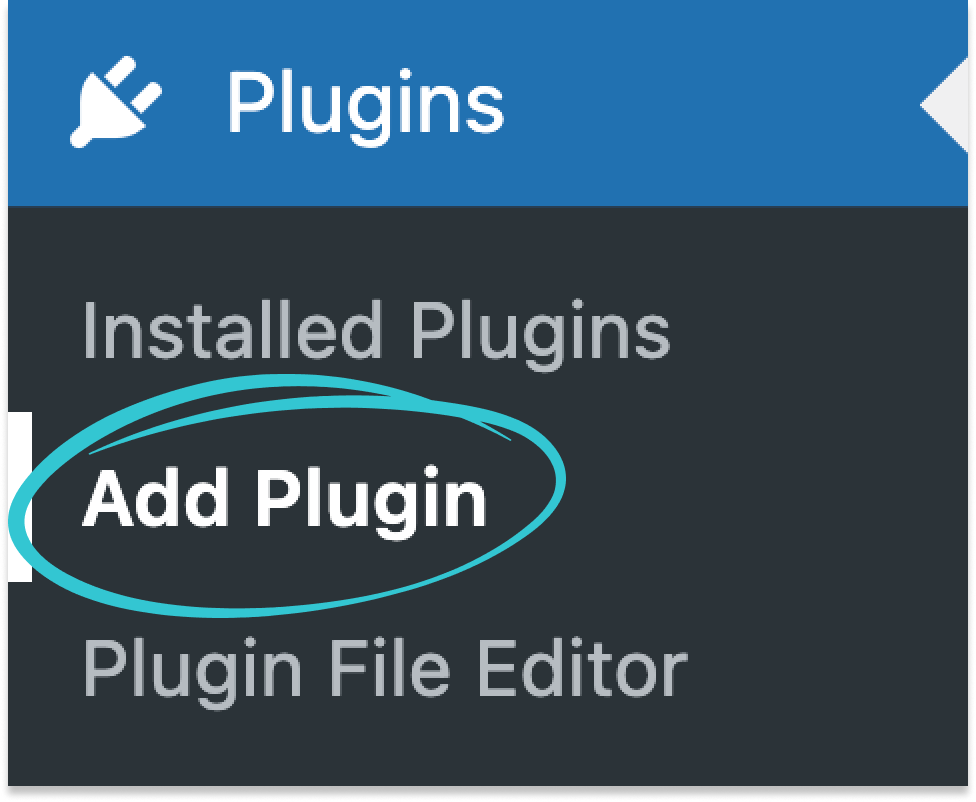
WordPress dashboard sidebar showing Plugins menu expanded with Add Plugin option

2. In the search bar, type WPCode

3. Find WPCode in the results and click Install Now
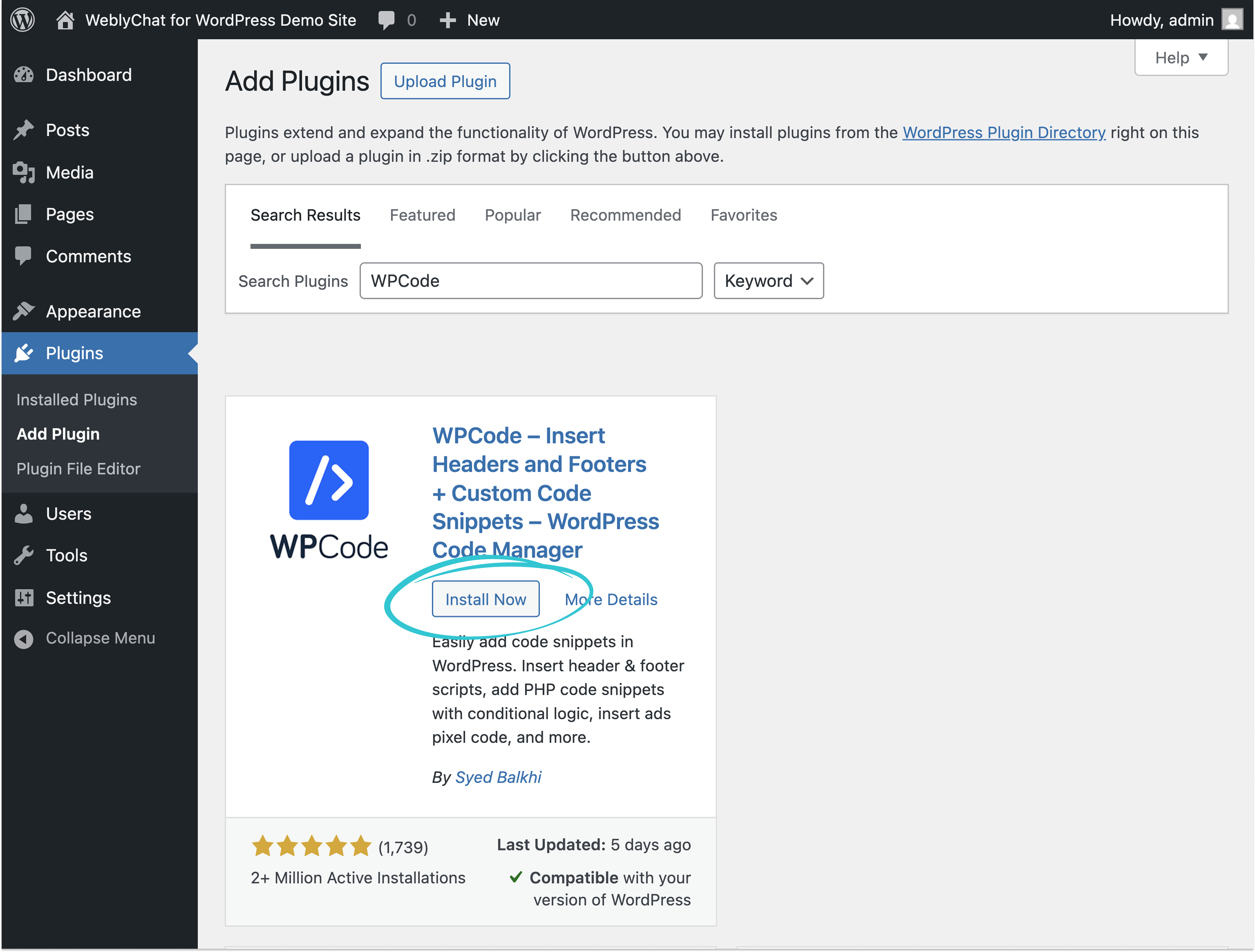
WordPress Add Plugins page with WPCode searched and Install Now button highlighted

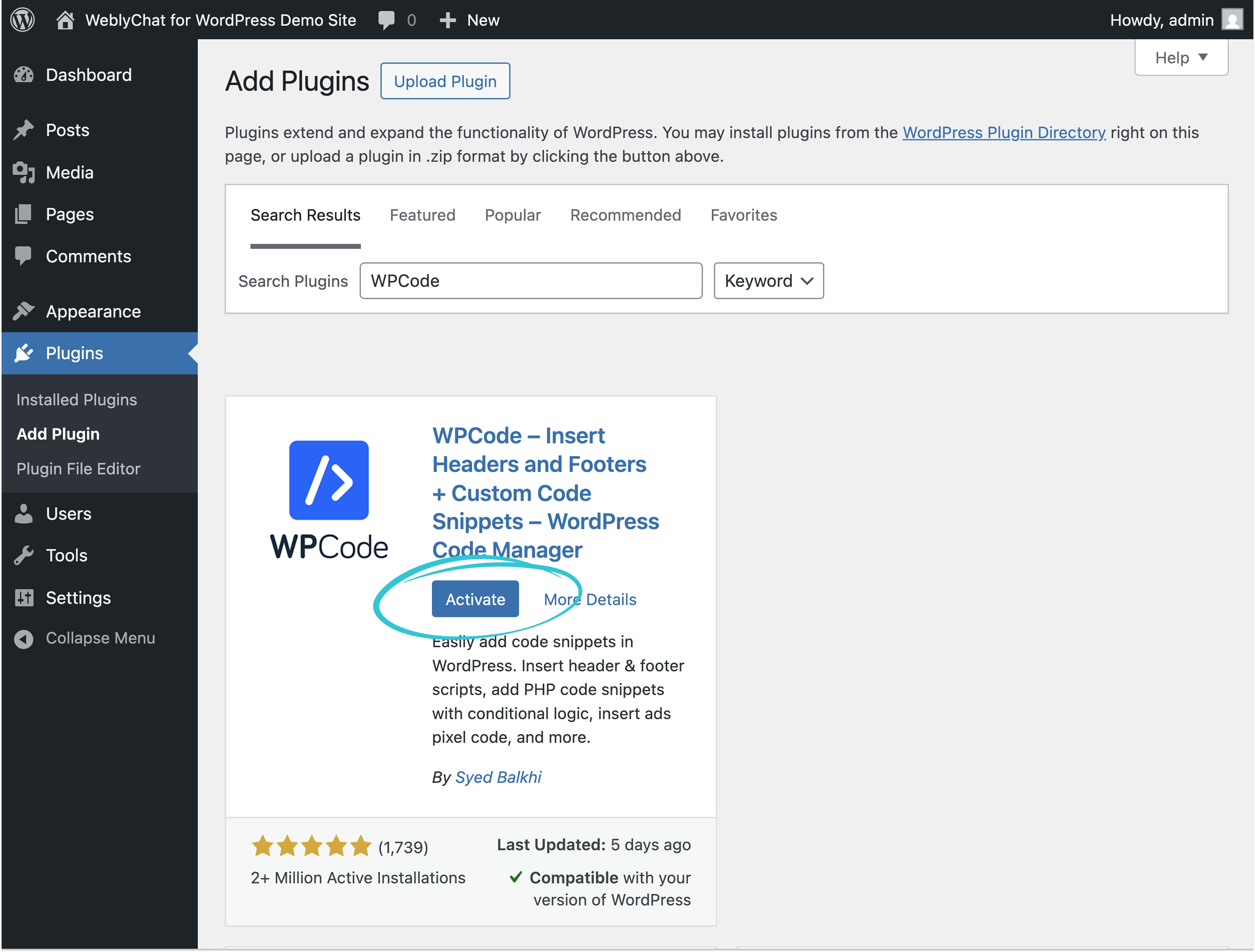
4. Once installed, click Activate

WordPress Add Plugins page with WPCode showing Activate button after installation

You will be taken to the Installed Plugins page where you can confirm WPCode is active.
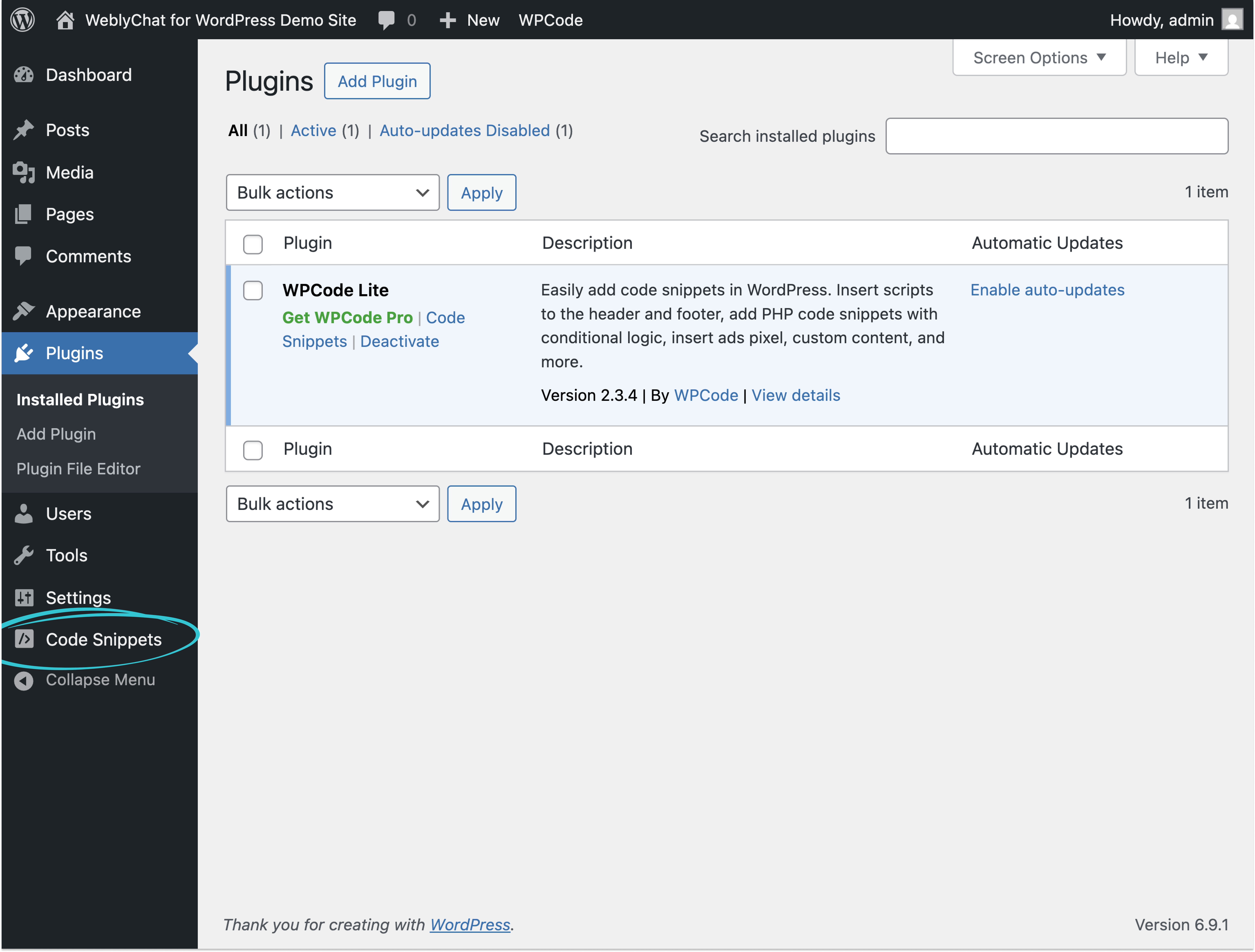
WordPress Installed Plugins page showing WPCode Lite is active

5. Click Code Snippets in the sidebar, then click Header & Footer in the dropdown

6. Scroll down to the Footer section and paste your WeblyChat code snippet there
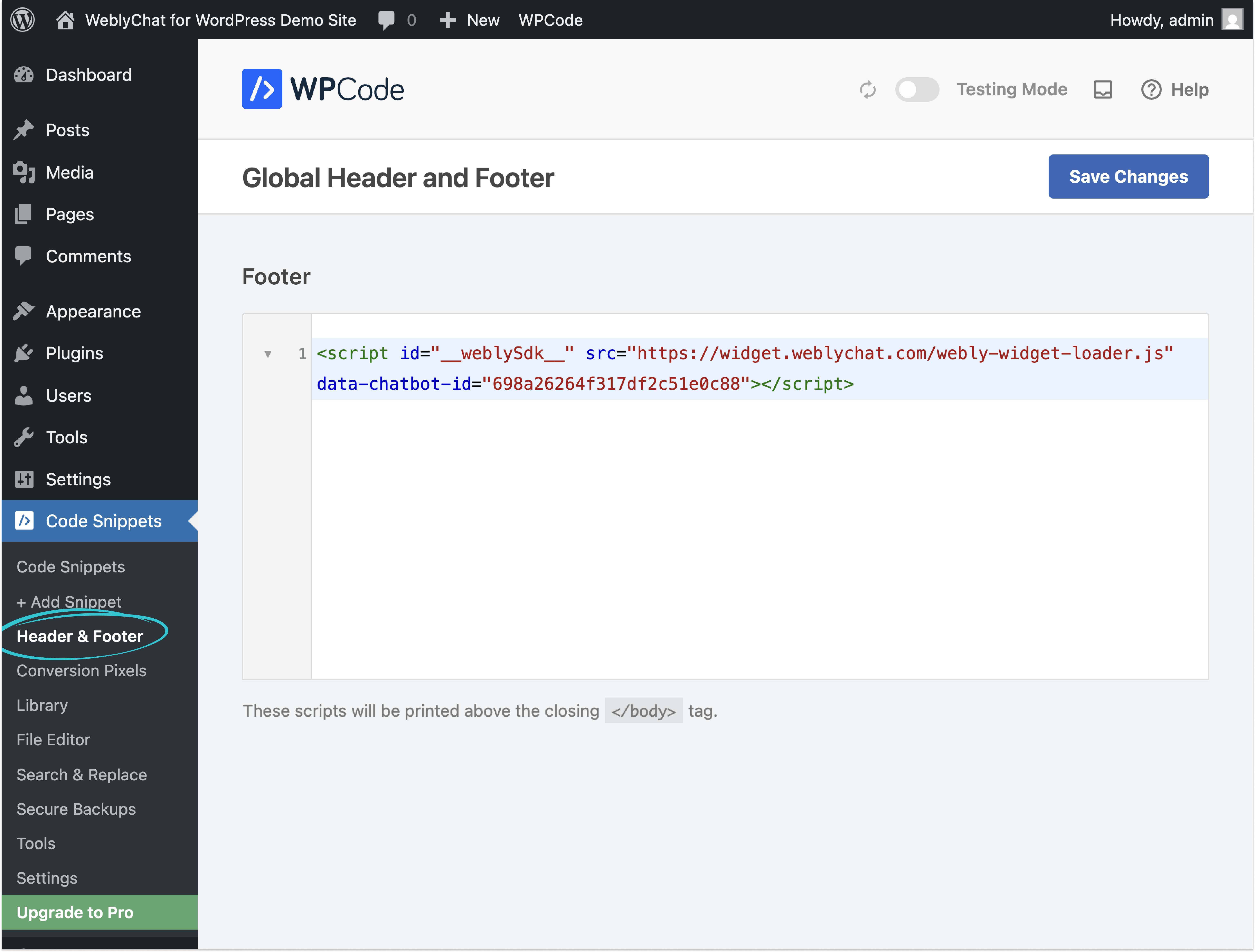
WPCode Global Header and Footer page with WeblyChat code snippet pasted in the Footer section

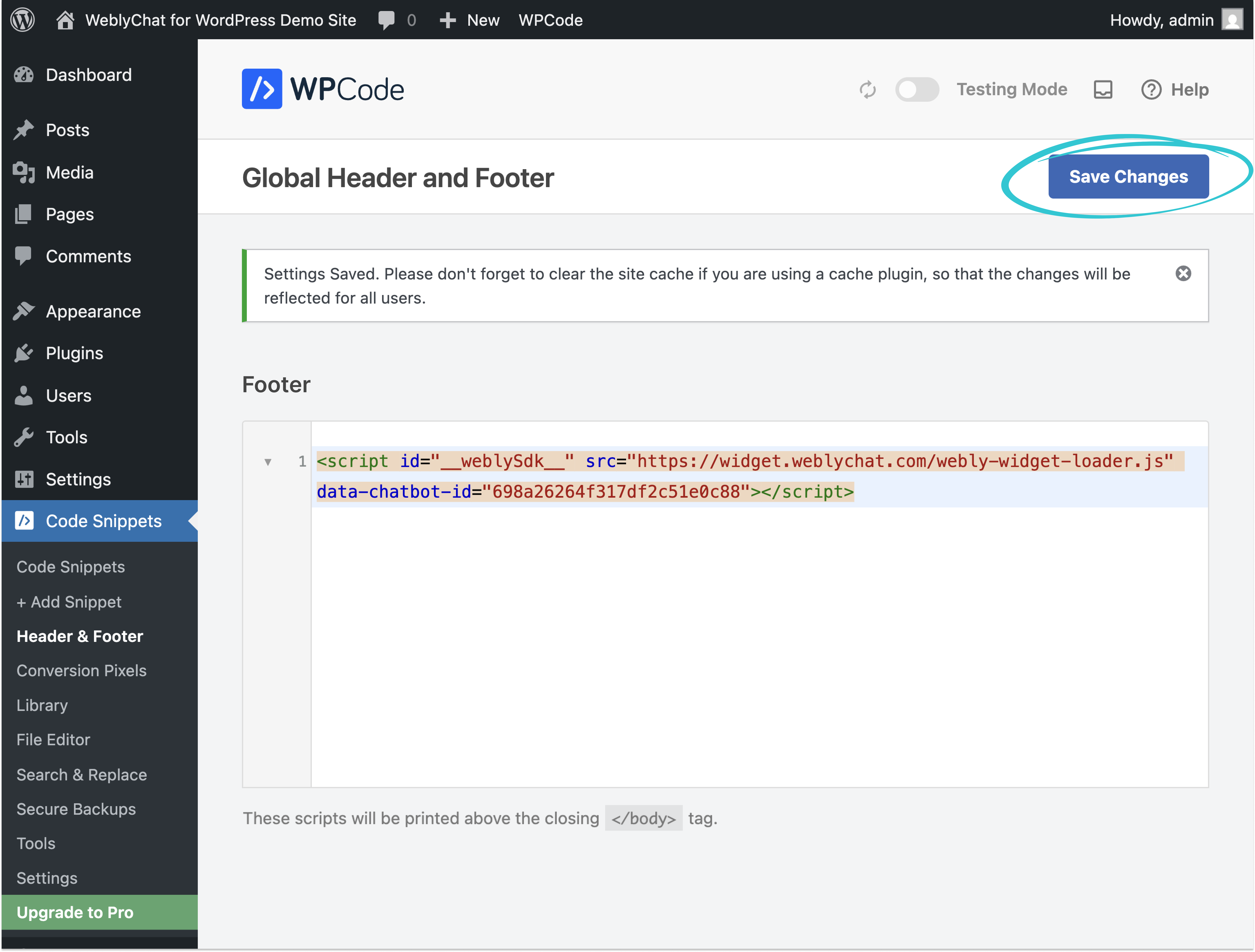
7. Click Save Changes

WPCode Global Header and Footer page showing Settings Saved confirmation message

6. You Are Live

Visit your WordPress site and you should see the chatbot widget in the corner. That is it.
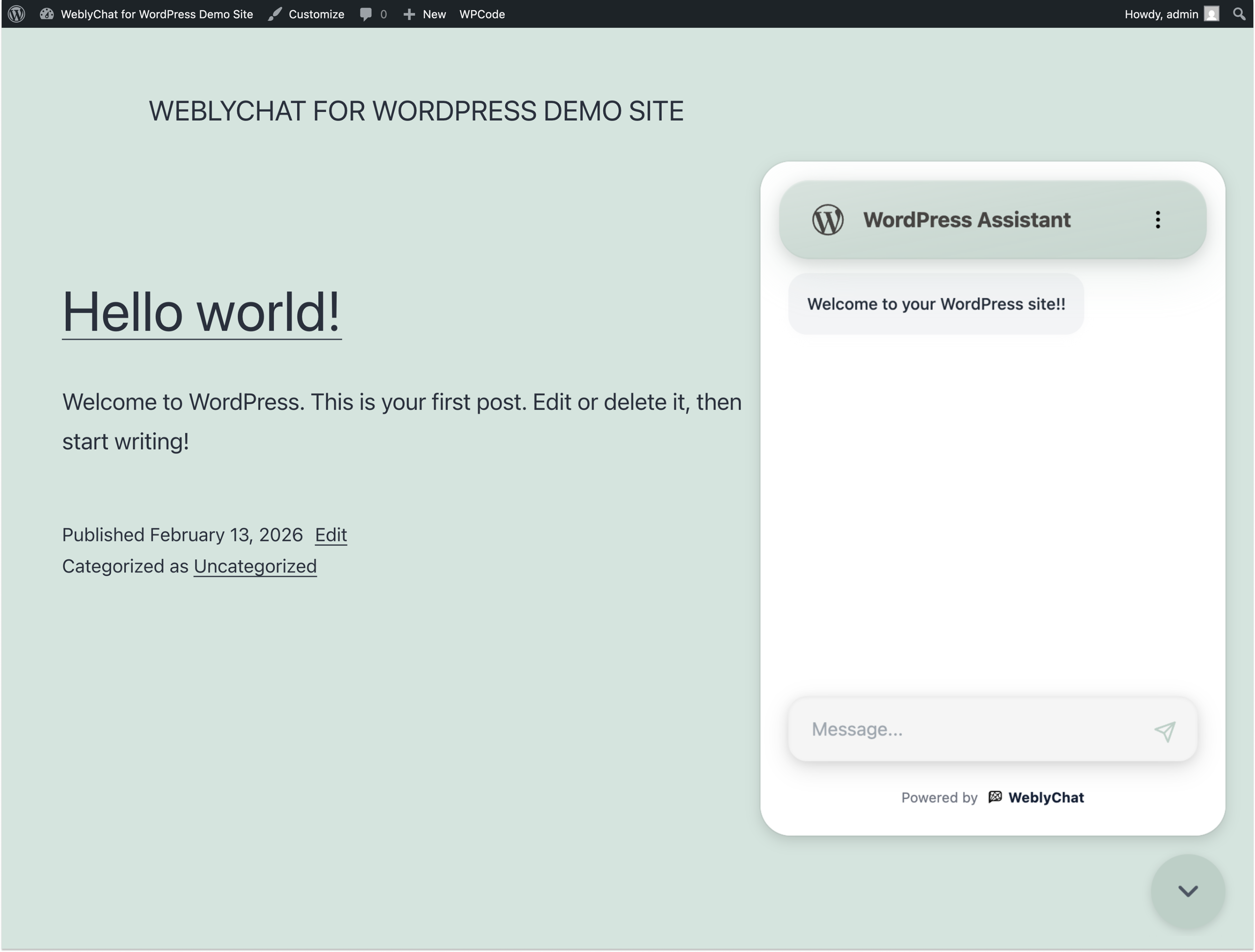
WordPress site with WeblyChat chatbot widget visible in the bottom right corner

Any changes you make in your WeblyChat dashboard (colors, welcome message, training data) update instantly without touching WordPress again. You only paste the code once.

Ready to get started? Create your free WeblyChat account and have your WordPress chatbot live in under 5 minutes. The free plan includes 30 messages per month, enough to see your first real visitor conversations this week.

Alternative: Theme File Editor

If you prefer not to install a plugin, you can paste the code directly into your theme files. In your WordPress dashboard, go to Appearance then Theme File Editor, open footer.php, and paste the snippet just before the closing </body> tag. Click Update File.

This method works, but keep in mind: edits to theme files get overwritten when your theme updates, and a misplaced character in footer.php can break your site. For most WordPress site owners, the WPCode method above is safer and takes the same amount of time.


The Best Chatbot for WordPress Sites in 2026

WordPress powers over 40% of all websites on the internet. If you are running a business on WordPress, you probably chose it because it gives you control over your site without needing a developer for every change. Adding an AI chatbot to WordPress follows the same logic. You should not need to be technical to give your visitors a great experience.

The reality for most WordPress site owners is that you are wearing multiple hats. You are updating content, managing plugins, handling customer inquiries, and trying to grow your business at the same time. When a visitor lands on your site at 10 PM with a question about your services, you are probably not sitting at your computer waiting to respond. That visitor leaves, and you never know they were there.

A WordPress AI chatbot trained on your website answers the questions your visitors already have. Someone asks about your pricing, and the chatbot pulls the answer from your pricing page. Someone wants to know your hours or your return policy, and the chatbot responds instantly. This is not about replacing you. It is about making sure every visitor gets a response, whether you are available or not.

Why a Free Chatbot for WordPress Is the Right Starting Point

WeblyChat has a free plan that includes a fully functional AI chatbot trained on your WordPress site, 30 messages per month, and zero credit card required. That is enough to see your first real visitor conversations and decide if it is worth upgrading. Most WordPress chatbot plugins either have no free tier or offer a limited trial that expires. WeblyChat's free plan renews every month.

Beyond the free plan, what separates WeblyChat from other options is how it installs. Most WordPress chatbot plugins install directly into your site, adding database queries, update dependencies, and potential conflicts with your other plugins. WeblyChat takes a lighter approach: one line of code, pasted once. The AI runs externally, so your WordPress site stays fast and clean. If you have been searching for a wordpress ai chatbot plugin that does not slow down your site or require ongoing maintenance, this is the approach worth trying.

Here is why that matters:

  • No plugin conflicts. Most WordPress chatbot plugins can conflict with your theme or other plugins after updates. WeblyChat loads externally, so it never touches your plugin stack.
  • No database overhead. Traditional chatbot plugins add database queries on every page load. WeblyChat loads asynchronously from an external script, so your WordPress database is not affected.
  • No update maintenance. You never need to update a chatbot plugin version, check compatibility with your WordPress core version, or worry about a plugin breaking after a theme update.
  • Works everywhere. The same code works on any WordPress theme, any hosting provider, and alongside any page builder. There is nothing to configure per-environment.

If you have used WordPress for any length of time, you know that fewer plugins means fewer problems. WeblyChat gives you everything you want from a WordPress chatbot plugin with none of the typical downsides.

WordPress Chatbot Comparison

Not all WordPress chatbots are priced the same or work the same way. Here is how WeblyChat stacks up on the features that matter most.

Feature
WeblyChat
Tidio
Chatling
ChatBot.com
Free Forever Plan
Yes, 30 msgs/mo (renews monthly)
50 one-time AI conversations (do not renew)
100 AI credits (1 credit per AI response)
No free plan (14-day trial only)
Starting Price (with AI)
$19.99/mo (1,500 chats)
$29/mo base + $39/mo for Lyro AI
$25/mo (3,000 AI credits)
$65/mo (1,000 chats)
Hidden Add-On Costs
None. One price, everything included.
AI, automation flows, and branding removal billed separately
Extra AI credits if you exceed your monthly limit
Higher tiers required for more chats ($169/mo for 5,000)
WordPress Setup
Paste one embed code snippet
Install plugin, connect account, configure settings
Paste embed code, then build flows in dashboard
Install plugin, build chatbot flows, connect integrations
Plugin Conflicts
None (no plugin needed)
Possible
None (no plugin needed)
Possible
Best For
Small businesses that want a trained AI chatbot live in minutes
Teams that need live chat first and want to add AI later
Users who want a visual flow builder and are okay with per-credit AI pricing
Businesses with budget for enterprise-grade chatbot tooling

Pricing and features verified February 2026. Visit each provider's website for the most current information.

All four tools can add a chatbot to your WordPress site. Tidio is primarily a live chat platform that offers AI as a paid add-on. Chatling offers AI training and a visual flow builder, but charges per AI credit once you exceed your plan limit. ChatBot.com is built for larger teams that need complex workflows and integrations. WeblyChat is the fastest way to get a trained AI chatbot on your WordPress site. Paste one code snippet, point it at your URL, and your chatbot is live and answering visitor questions in minutes.

Frequently asked questions

Do I need a WordPress chatbot plugin to use WeblyChat?

WeblyChat works differently from traditional WordPress chatbot plugins. Instead of installing a chatbot plugin from the WordPress directory, you paste a single code snippet into your site using the free WPCode utility plugin. The chatbot itself runs externally, which means no database load, no plugin conflicts, and no update dependencies. You get all the benefits of a WordPress chatbot plugin without the typical overhead.

What is the best chatbot for WordPress?

The best WordPress chatbot depends on your needs, but for small businesses that want an AI-powered chatbot trained on their own website content, WeblyChat is built for exactly that. It trains on your WordPress site automatically, answers visitor questions 24/7, and takes under 5 minutes to set up with no coding required.

Is there a free chatbot for WordPress?

Yes. WeblyChat offers a free plan that includes an AI chatbot trained on your WordPress site, up to 30 messages per month, and one chatbot deployment. You can add the chatbot to your WordPress site at no cost and upgrade later if you need more messages or features.

Will the chatbot slow down my WordPress site?

No. The WeblyChat script loads asynchronously, which means it does not block your pages from rendering. Your WordPress site speed and Core Web Vitals remain unaffected. Unlike heavier WordPress chatbot plugins that add database queries on every page load, WeblyChat runs from an external script so your server is not affected.

How do I add a chatbot to my WordPress website?

Sign up for a free WeblyChat account, enter your WordPress URL to train the AI, then copy your embed code. In your WordPress dashboard, install the free WPCode plugin, go to Code Snippets then Header and Footer, scroll down to the Footer section, and paste your snippet there. Click Save Changes and your WordPress chatbot is live. The whole process takes under 5 minutes.

Does WeblyChat work with WordPress.com?

WeblyChat works best with self-hosted WordPress.org sites where you can install plugins like WPCode. WordPress.com Business and eCommerce plans also support plugins, so WPCode works there too. WordPress.com Free and Personal plans do not support plugin installation or custom code injection.

Does it work with WooCommerce?

Yes. WeblyChat works alongside WooCommerce with no conflicts. The chatbot can train on your product pages, answer questions about your products, and link visitors to specific product or checkout pages. It is a great way to add AI-powered support to your WooCommerce store.

What happens when I update my WordPress site?

WeblyChat's auto-crawl feature re-scans your website on a regular schedule: monthly on Essential, weekly on Pro, and daily on Premium. When you publish new posts, update pages, or change content on your WordPress site, the chatbot's knowledge updates automatically. You can also trigger a manual re-crawl at any time on any plan.

Frequently asked questions

WeblyChat works differently from traditional WordPress chatbot plugins. Instead of installing a chatbot plugin from the WordPress directory, you paste a single code snippet into your site using the free WPCode utility plugin. The chatbot itself runs externally, which means no database load, no plugin conflicts, and no update dependencies. You get all the benefits of a WordPress chatbot plugin without the typical overhead.

The best WordPress chatbot depends on your needs, but for small businesses that want an AI-powered chatbot trained on their own website content, WeblyChat is built for exactly that. It trains on your WordPress site automatically, answers visitor questions 24/7, and takes under 5 minutes to set up with no coding required.

Yes. WeblyChat offers a free plan that includes an AI chatbot trained on your WordPress site, up to 30 messages per month, and one chatbot deployment. You can add the chatbot to your WordPress site at no cost and upgrade later if you need more messages or features.

No. The WeblyChat script loads asynchronously, which means it does not block your pages from rendering. Your WordPress site speed and Core Web Vitals remain unaffected. Unlike heavier WordPress chatbot plugins that add database queries on every page load, WeblyChat runs from an external script so your server is not affected.

Sign up for a free WeblyChat account, enter your WordPress URL to train the AI, then copy your embed code. In your WordPress dashboard, install the free WPCode plugin, go to Code Snippets then Header and Footer, scroll down to the Footer section, and paste your snippet there. Click Save Changes and your WordPress chatbot is live. The whole process takes under 5 minutes.

WeblyChat works best with self-hosted WordPress.org sites where you can install plugins like WPCode. WordPress.com Business and eCommerce plans also support plugins, so WPCode works there too. WordPress.com Free and Personal plans do not support plugin installation or custom code injection.

Yes. WeblyChat works alongside WooCommerce with no conflicts. The chatbot can train on your product pages, answer questions about your products, and link visitors to specific product or checkout pages. It is a great way to add AI-powered support to your WooCommerce store.

WeblyChat's auto-crawl feature re-scans your website on a regular schedule: monthly on Essential, weekly on Pro, and daily on Premium. When you publish new posts, update pages, or change content on your WordPress site, the chatbot's knowledge updates automatically. You can also trigger a manual re-crawl at any time on any plan.