





WixEasy Setup

Add a Wix Chatbot to Your Website

Paste one code snippet into Wix and your chatbot goes live instantly. It trains on your website, answers visitor questions 24/7, and keeps them engaged while you focus on your business.

No Wix app needed. One embed code, pasted once. The easiest Wix chatbot integration.
Trained on your site. The chatbot learns your content automatically.
Free plan available. Start today with zero cost and no credit card.
Free forever. No credit card required.
About 4 minutesNo coding required
CarePlan AI
Swing Lab
PHSS – You at Home
What It Does

What Your Wix AI Chatbot Can Do

Answers Visitor Questions 24/7

Unlike Wix Chat or Wix Inbox, which require you to be online and reply manually, your Wix chatbot handles conversations on its own. Pricing, services, hours, FAQs. Visitors get real answers instantly, even when you are off the clock.

Trained on Your Wix Site

Add your Wix URL and the AI reads every page you have built in the Wix Editor. Services, about, pricing, portfolio, menu, FAQs. If it is published on your Wix site, the chatbot knows it.

Auto-Crawl Updates

Update a price in the Wix Editor or add a new service page. On paid plans, the chatbot's knowledge updates automatically on a schedule. No need to re-paste any code or touch your Wix settings again.

Built-In Contact Form

Visitors can message you directly through the chat widget without needing Wix Forms or a separate form app. Emails go straight to your inbox. Available on paid plans.

Brand Customization

Match the look and feel you designed in the Wix Editor. Customize colors, logo, welcome message, suggested prompts, and more. The chatbot blends into your Wix site like you built it there yourself.

Setup

Live on Wix in 3 Steps

1

Sign Up and Train

Create a free account and enter your Wix URL. The AI scans your entire site in seconds.

2

Paste One Snippet

Copy your embed code and paste it into Wix's Custom Code settings. Select 'Body - end' and apply.

3

Go Live

Press Apply. Your chatbot appears on your Wix site within minutes. No need to republish.

Compatibility

Wix Compatibility at a Glance

Supported Wix Plans

WeblyChat works on any Wix plan that supports Custom Code: Light, Core, Business, Business Elite, and all eCommerce plans. The free Wix plan does not support custom code injection.

Wix Editor and Wix Studio

The Custom Code method works in both the classic Wix Editor and Wix Studio (formerly Editor X). The steps are the same for both editors.

No App Marketplace Needed

WeblyChat does not require a Wix app installation. You paste the code directly into Custom Code settings. This means no app conflicts, no marketplace dependencies, and no extra monthly fees from Wix.

Mobile and Desktop

The chatbot widget automatically adapts to mobile and desktop views on your Wix site. No separate configuration needed for responsive behavior.

Page-Level Control

In Wix's Custom Code settings, you can choose to load WeblyChat on all pages or select specific pages only. This lets you show the chatbot on your services page but hide it on your blog, for example.

Site Speed Impact

WeblyChat loads asynchronously, meaning it does not block your Wix pages from rendering. Your site speed and Core Web Vitals stay the same after installation.

Ready to Add a Wix Chatbot to Your Site?

Start free. No credit card required. Your chatbot goes live in under 5 minutes.

Wix Chatbot Integration: Step-by-Step Walkthrough

To complete your Wix chatbot integration, sign up for WeblyChat, enter your site URL to train the AI, then paste one code snippet into Wix's Custom Code settings under Body - end. The chatbot goes live in under 5 minutes and works on any Wix plan that supports Custom Code.

Here is every click explained so you can follow along with both your WeblyChat and Wix dashboards open.

1. Sign Up and Set Up Your Wix Chatbot

Go to WeblyChat and create a free account. The first thing you will see is two fields:

  • Chatbot Name: This is what the chatbot responds as (e.g. "Webly Assistant" or "Your Business Name Assistant"). Visitors will see this name in the chat.
  • Organization Name: The name of your business or organization. This helps the chatbot understand who it works for.

2. Add Your Website URL

This is the most important step. Go to Sources and add your Wix website URL. The AI will crawl your entire site and train on your content: services, pricing, FAQs, about page, and everything else published on your Wix site. This is what makes your Wix AI chatbot actually useful. It answers questions using your real content.

You can also upload files or add custom Q&As if you want the chatbot to know things that are not on your website, but the URL is the starting point.

3. Use the Wix Chatbot Builder to Customize Your Widget

Head to the Builder page to customize how your chatbot looks and behaves. You can match your brand colors and logo, write a welcome message, adjust the widget size and position, and more. The defaults work well out of the box, so you can always come back and fine-tune later.

The Builder page also includes a live preview where you can test your chatbot in real time. Ask it questions about your business to make sure it is answering correctly before you go live.

4. Copy Your Embed Code

Go to Add to Site in the sidebar. You will see a single code snippet. Click the copy button. This is the only code you will ever need.

5. Paste the Code Into Wix

1. In your Wix dashboard, select the site you want to add the chatbot to

2. Click Settings in the sidebar menu (near the bottom)
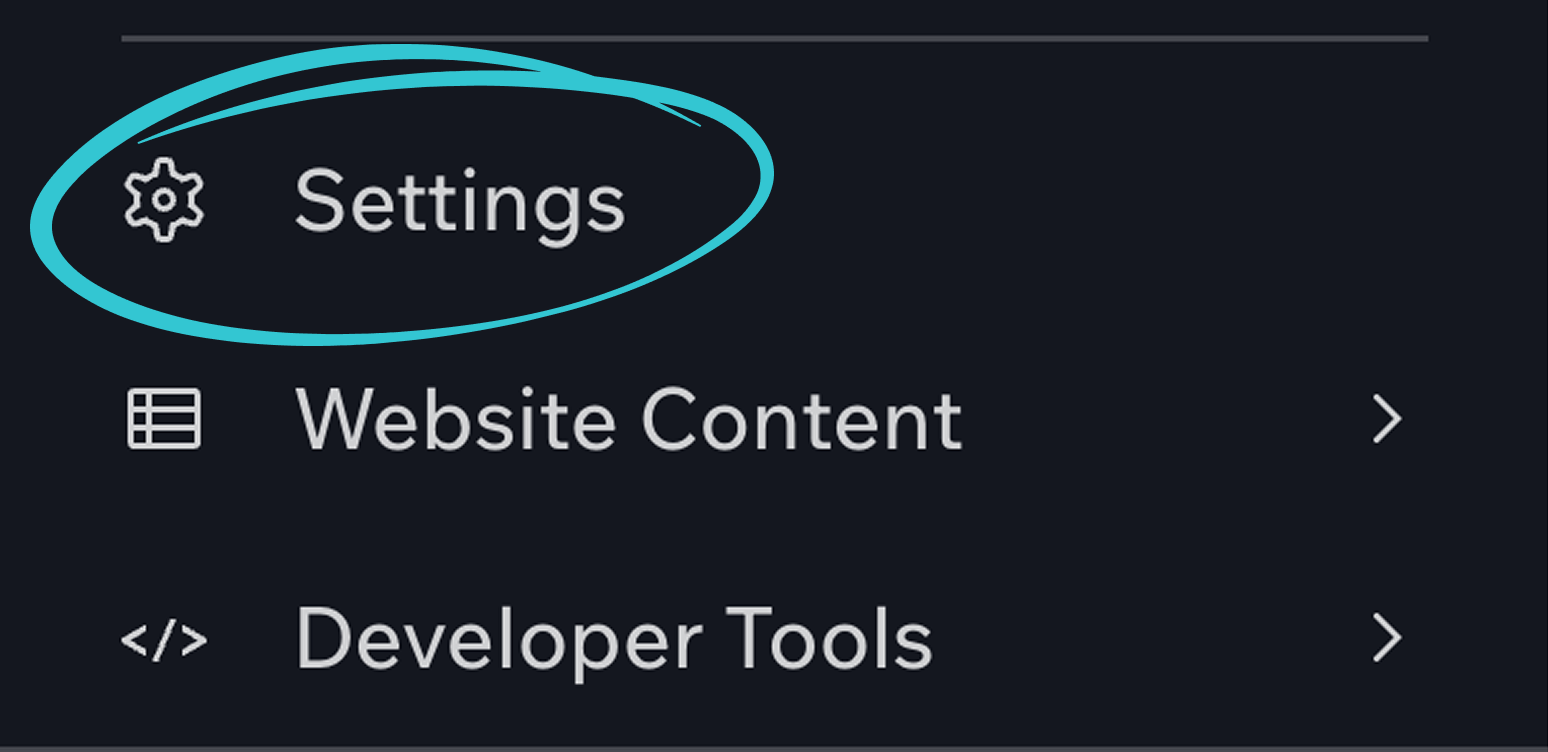
Wix dashboard sidebar showing the Settings menu item near the bottom

3. Scroll down to Development and Integrations (or search "Custom Code" in the search bar)

4. Click Custom Code
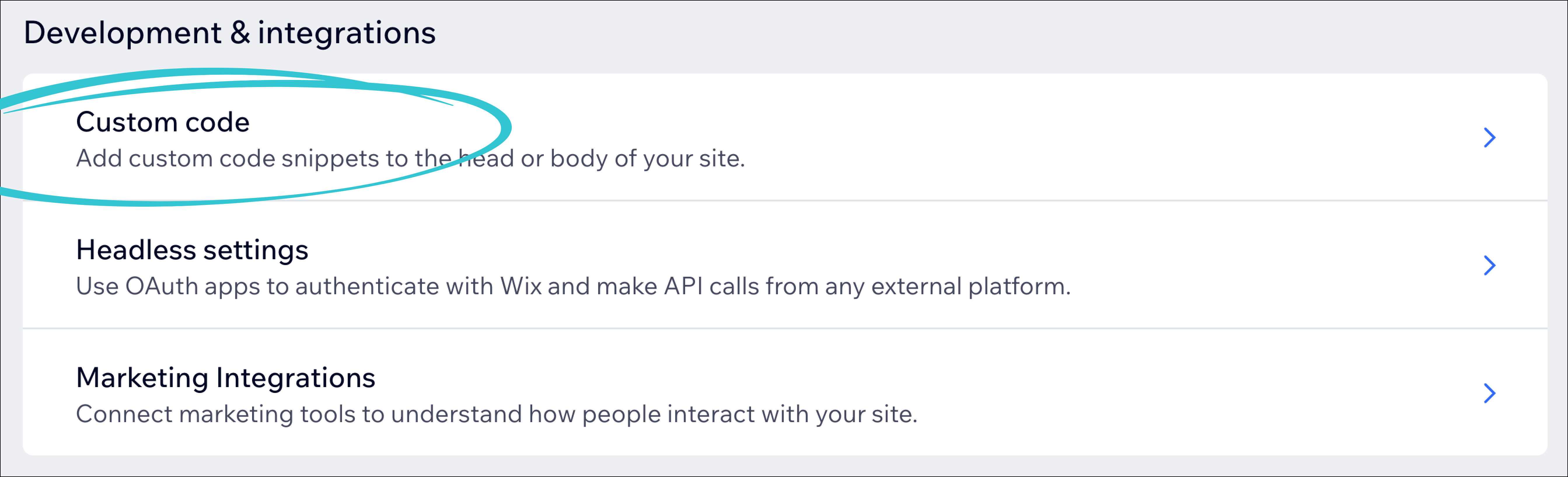
Wix Settings page showing Development and Integrations section with Custom Code option

5. Scroll down to the Body - end section and click Add Code, or click the + Add Custom Code button at the top of the page
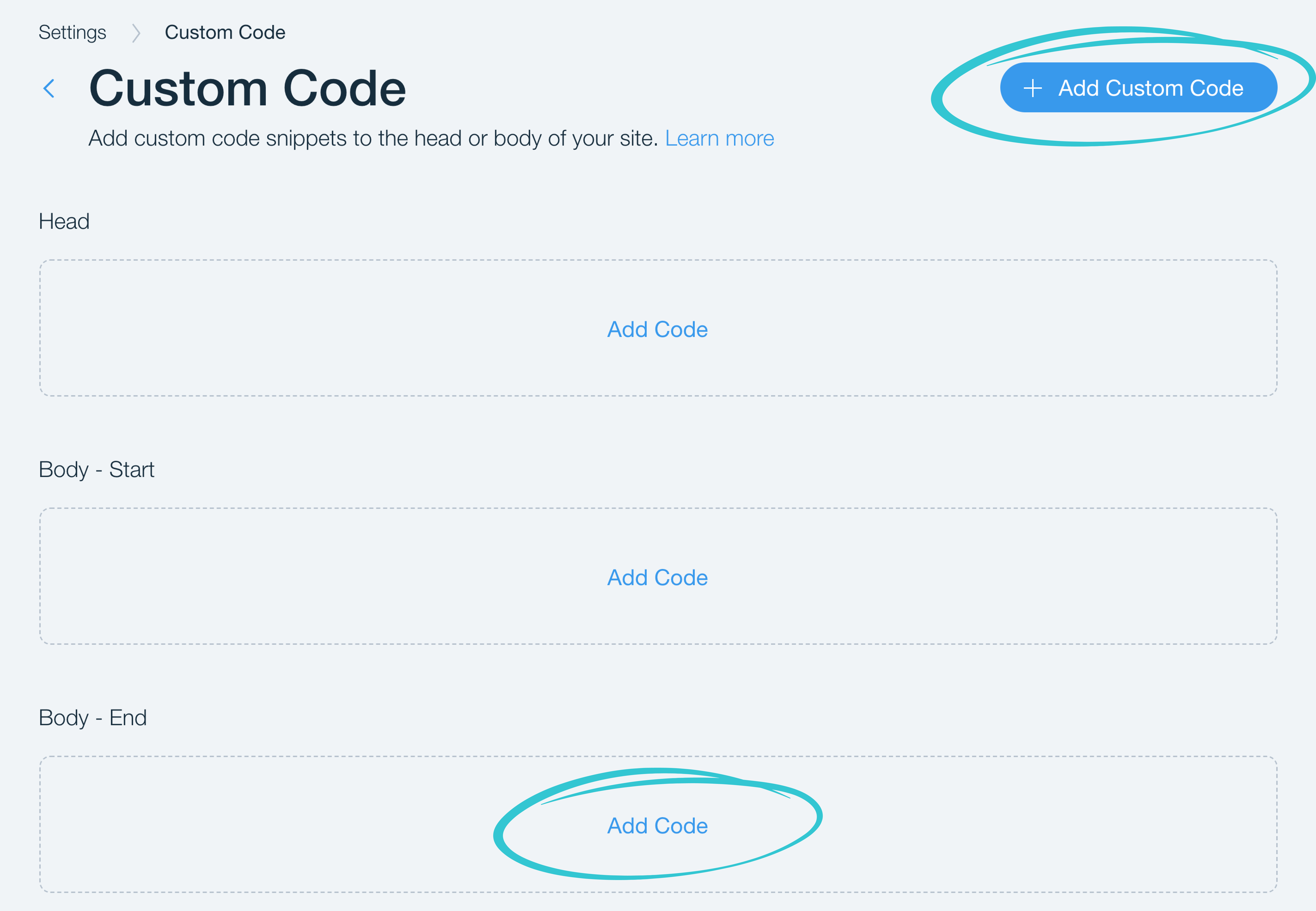
Wix Custom Code page showing Head, Body Start, and Body End sections with Add Code buttons

6. In the code settings dialog, paste your WeblyChat code snippet where it says "Paste code snippet here"

7. Name it "WeblyChat" so you can easily find it later

8. Under Add Code to Pages, select All pages and set the dropdown to Load code once. If you only want the chatbot on specific pages, select Choose specific pages and pick the pages you want.

9. Under Place Code in, select Body - end

10. Click Apply
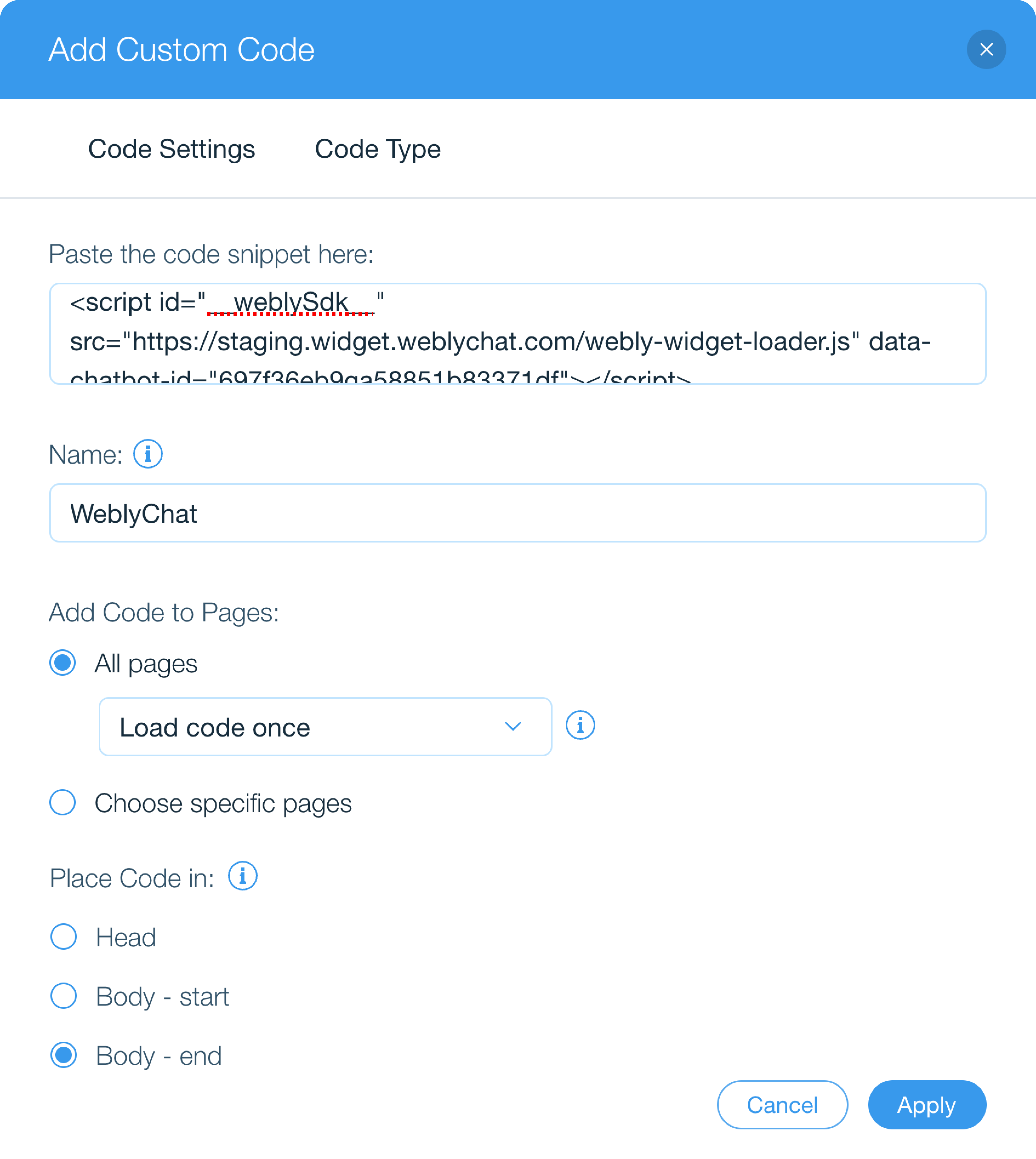
Wix Add Custom Code dialog with WeblyChat code pasted, named WeblyChat, set to All Pages with Load code once, and Body end selected

6. You Are Live

You do not need to republish your Wix site. Once you press Apply, the chatbot will appear on your site within a few minutes. Visit your website and you should see the widget in the corner.

Wix Body End section showing WeblyChat applied on all pages with active toggle

Any changes you make in your WeblyChat dashboard (colors, welcome message, training data) update instantly without touching Wix again. You only paste the code once.

Ready to get started? Create your free WeblyChat account and have your Wix chatbot live in under 5 minutes. The free plan includes 30 messages per month, enough to see your first real visitor conversations this week.


Why Wix Site Owners Are Adding a Chatbot on Wix

If you built your website on Wix, you probably did it because you wanted something professional without hiring a developer. Adding a chatbot on wix follows the same logic. You should not need to be technical to give your visitors a great experience.

The reality for most Wix site owners is that you are running the business yourself. You are the sales team, the support team, and the marketing team. When a visitor lands on your wix website and your chatbot is not there to greet them at 9 PM, you are probably not sitting at your computer waiting to respond. That visitor leaves, and you never know they were there.

AI chatbot widgets for wix solve this by answering visitor questions automatically using your website content. Someone asks about your pricing, and the chatbot pulls the answer from your pricing page. Someone wants to know your hours, and the chatbot responds instantly. This is not about replacing you. It is about making sure every visitor gets a response, whether you are available or not.

Because WeblyChat uses Wix's built-in Custom Code feature, the wix ai chatbot integration requires no ongoing maintenance. No app updates, no plugin conflicts, no compatibility issues when Wix releases a new editor version. You paste the code once and it works.

For more detailed setup guides and advanced features, visit our documentation.

Frequently asked questions

Does WeblyChat work with all Wix plans?

WeblyChat works on any Wix plan that supports Custom Code, which includes Light, Core, Business, Business Elite, and all eCommerce plans. The free Wix plan does not support custom code injection, so you would need at least the Light plan.

Do I need to install a Wix app from the App Market?

No. WeblyChat uses a simple embed code that you paste into Wix's Custom Code settings. There is no app to install, no marketplace dependency, and no extra fees from Wix. You manage everything from your WeblyChat dashboard.

Will the chatbot slow down my Wix website?

No. The WeblyChat script loads asynchronously, which means it does not block your pages from rendering. Your Wix site speed and Core Web Vitals remain unaffected.

Can I choose which pages the chatbot appears on?

Yes. When you add the code in Wix's Custom Code settings, you can select 'All pages' with 'Load code once,' or select 'Choose specific pages' to pick exactly which pages the chatbot appears on.

How do I add a chatbot to my Wix website?

Sign up for a free WeblyChat account, enter your Wix URL to train the AI, then copy your embed code. In your Wix dashboard, go to Settings, then Custom Code, and paste the snippet in the Body - end section. Click Apply and your Wix chatbot is live. The whole process takes under 5 minutes.

How is this different from Wix Chat or Wix Inbox?

Wix Chat and Wix Inbox require you or a team member to be online and respond manually. WeblyChat is AI-powered. It handles conversations automatically using your website content, 24/7, without anyone needing to be online. You can review every conversation in your dashboard afterward.

What happens when I update my Wix site?

WeblyChat's auto-crawl feature re-scans your website on a regular schedule: monthly on Essential, weekly on Pro, and daily on Premium. When you update content, change pricing, or add new pages on your Wix site, the chatbot's knowledge updates automatically. You can also trigger a manual re-crawl at any time on any plan.

Can I use WeblyChat with Wix Studio (formerly Editor X)?

Yes. The Custom Code method works identically in both the classic Wix Editor and Wix Studio. The setup steps are the same.

Frequently asked questions

WeblyChat works on any Wix plan that supports Custom Code, which includes Light, Core, Business, Business Elite, and all eCommerce plans. The free Wix plan does not support custom code injection, so you would need at least the Light plan.

No. WeblyChat uses a simple embed code that you paste into Wix's Custom Code settings. There is no app to install, no marketplace dependency, and no extra fees from Wix. You manage everything from your WeblyChat dashboard.

No. The WeblyChat script loads asynchronously, which means it does not block your pages from rendering. Your Wix site speed and Core Web Vitals remain unaffected.

Yes. When you add the code in Wix's Custom Code settings, you can select 'All pages' with 'Load code once,' or select 'Choose specific pages' to pick exactly which pages the chatbot appears on.

Sign up for a free WeblyChat account, enter your Wix URL to train the AI, then copy your embed code. In your Wix dashboard, go to Settings, then Custom Code, and paste the snippet in the Body - end section. Click Apply and your Wix chatbot is live. The whole process takes under 5 minutes.

Wix Chat and Wix Inbox require you or a team member to be online and respond manually. WeblyChat is AI-powered. It handles conversations automatically using your website content, 24/7, without anyone needing to be online. You can review every conversation in your dashboard afterward.

WeblyChat's auto-crawl feature re-scans your website on a regular schedule: monthly on Essential, weekly on Pro, and daily on Premium. When you update content, change pricing, or add new pages on your Wix site, the chatbot's knowledge updates automatically. You can also trigger a manual re-crawl at any time on any plan.

Yes. The Custom Code method works identically in both the classic Wix Editor and Wix Studio. The setup steps are the same.