





ShopifyEasy Setup

Add a Shopify Chatbot to Your Store

Paste one code snippet into your Shopify theme and your AI chatbot goes live instantly. It trains on your products, pages, and policies, answers shopper questions 24/7, and keeps visitors engaged while you focus on running your store.

No Shopify app required. One embed code, pasted once into your theme. The simplest Shopify chatbot setup.
Trained on your store. The AI reads your products, pages, and policies automatically.
Free plan available. Start today with zero cost and no credit card.
Free forever. No credit card required.
About 3 minutesNo coding required
CarePlan AI
Swing Lab
PHSS – You at Home
What It Does

What Your Shopify AI Chatbot Can Do

Answers Shopper Questions 24/7

Unlike Shopify Inbox, which requires you or a team member to be online and reply manually, your Shopify chatbot handles conversations on its own. Product details, shipping policies, return windows, store hours. Shoppers get real answers instantly, even when you are off the clock.

Trained on Your Shopify Store

Add your Shopify URL and the AI reads every product page, collection, policy, and content page you have published. If it is live on your store, the chatbot knows it. No manual data entry, no flow builder, no scripting.

Auto-Crawl Updates

Add a new product, update a price, or change your return policy. On paid plans, the chatbot's knowledge updates automatically on a schedule. No need to re-paste any code or touch your Shopify theme again.

Built-In Contact Form

Shoppers can message you directly through the chat widget without needing a separate contact app. Messages go straight to your inbox. Available on paid plans.

Brand Customization

Match the look and feel of your Shopify theme. Customize colors, logo, welcome message, suggested prompts, and more. The chatbot blends into your store like it was built there.

Setup

Live on Shopify in 3 Steps

1

Sign Up and Train

Create a free account and enter your Shopify store URL. The AI scans your products, pages, and policies in seconds.

2

Paste One Snippet

Copy your embed code and paste it into your Shopify theme's theme.liquid file, just before the closing body tag.

3

Go Live

Save your theme. Your chatbot appears on your Shopify store within minutes, on every page.

Compatibility

Shopify Compatibility at a Glance

Works With Any Shopify Theme

WeblyChat loads as a lightweight script that sits on top of your theme. It works with Dawn, Debut, Impulse, Prestige, and every other Shopify theme, including custom themes built by a developer.

No Shopify App Required

WeblyChat does not require a Shopify app installation from the App Store. You paste the code directly into your theme. No app fees, no App Store dependencies, and no extra monthly charges from Shopify.

Mobile and Desktop

The chatbot widget automatically adapts to mobile and desktop views on your Shopify store. No separate configuration needed for responsive behavior.

All Shopify Plans

WeblyChat works on all Shopify plans, including Basic, Shopify, Advanced, and Plus. The embed code is added through the theme editor, which is available on every plan.

Shopify Markets and Multi-Language

WeblyChat supports multi-language responses out of the box on all plans. If your store serves shoppers in multiple languages, the chatbot can respond in the language the shopper writes in.

Site Speed Impact

WeblyChat loads asynchronously, meaning it does not block your Shopify storefront from rendering. Your page speed and Core Web Vitals stay the same after installation.

Ready to Add a Chatbot to Your Shopify Store?

Start free. No credit card required. Your Shopify chatbot goes live in under 5 minutes.

How to Add a Chatbot to Your Shopify Store

To add a chatbot to Shopify, sign up for WeblyChat, enter your store URL to train the AI, then paste one code snippet into your Shopify theme using the Theme Editor. The chatbot goes live in under 5 minutes and works on any Shopify theme or plan.

Here is every step explained so you can follow along with both your WeblyChat and Shopify dashboards open.

1. Create Your WeblyChat Account

Go to WeblyChat and sign up for a free account. You will be asked for two things:

  • Chatbot Name: The name your chatbot responds as. For a Shopify store, something like "[Your Store Name] Assistant" works well. Shoppers see this name in the chat header.
  • Organization Name: Your business or store name. This gives the AI context about who it represents when answering shopper questions.

2. Train the AI on Your Shopify Store

Go to Sources and paste your Shopify store URL. The AI crawls every published product page, collection page, policy page, and content page on your store. This is what makes your Shopify AI chatbot actually useful. It answers questions using your real store content, not generic canned responses.

You can also upload files or add custom Q&As for anything not on your storefront, like internal size guides, wholesale policies, or custom FAQs.

3. Customize the Widget to Match Your Store

Open the Builder page to style your chatbot. You can match the colors of your Shopify theme, upload your logo, write a welcome message, set suggested prompts, and adjust the widget position. The defaults look good out of the box, so you can skip this and come back later.

The Builder also includes a live preview. Test it by asking questions about your products. Make sure the AI is pulling the right answers from your store content before you go live.

4. Copy Your Embed Code

Go to Add to Site in your WeblyChat dashboard. You will see a single <script> tag. Click the copy button. This one snippet is all you need.

5. Add the Code to Your Shopify Theme

1. From your Shopify admin home page, click Online Store in the left sidebar under Sales channels.
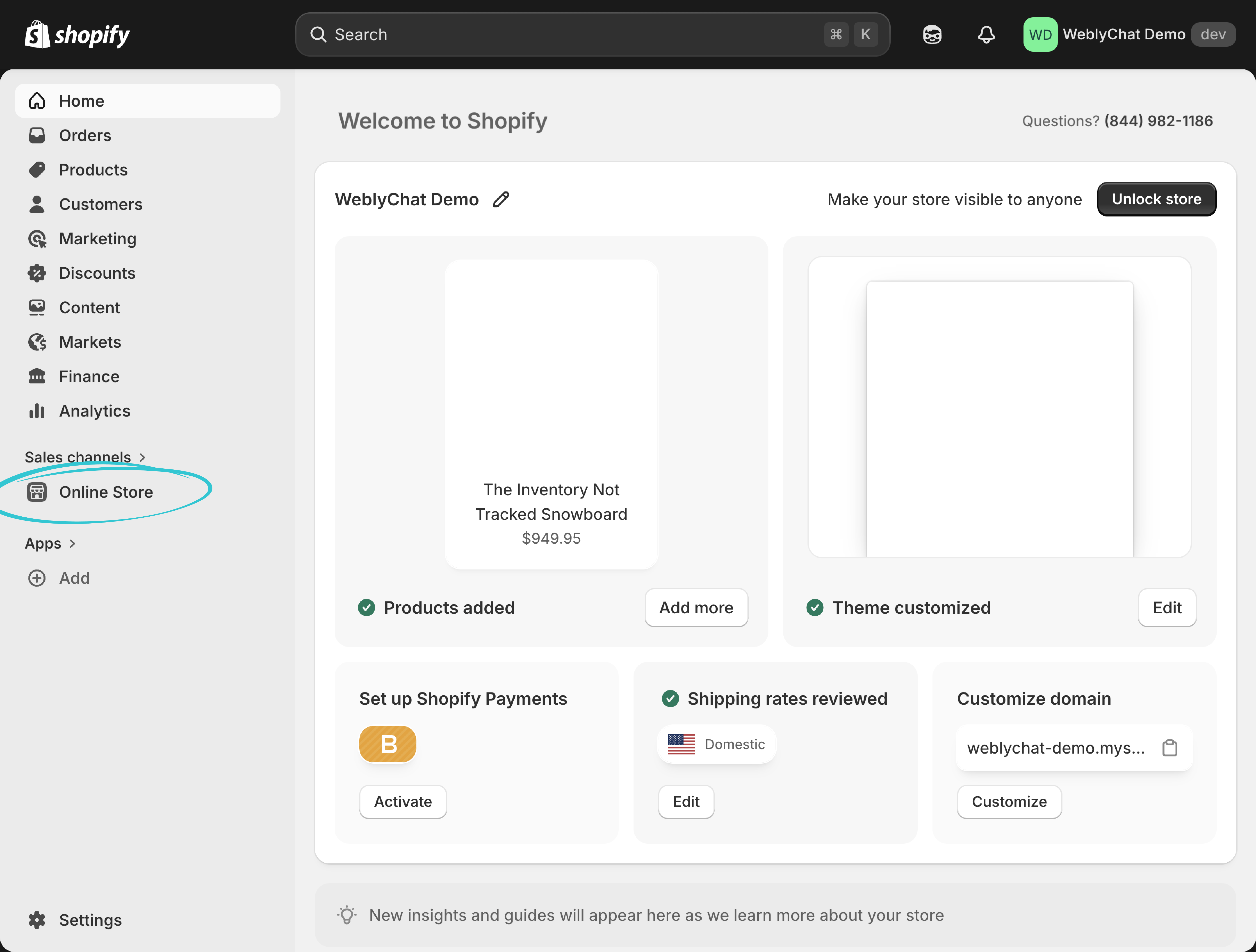
Shopify admin sidebar with Online Store highlighted under Sales channels

2. This takes you straight to Themes. Find your active theme and click Edit theme.
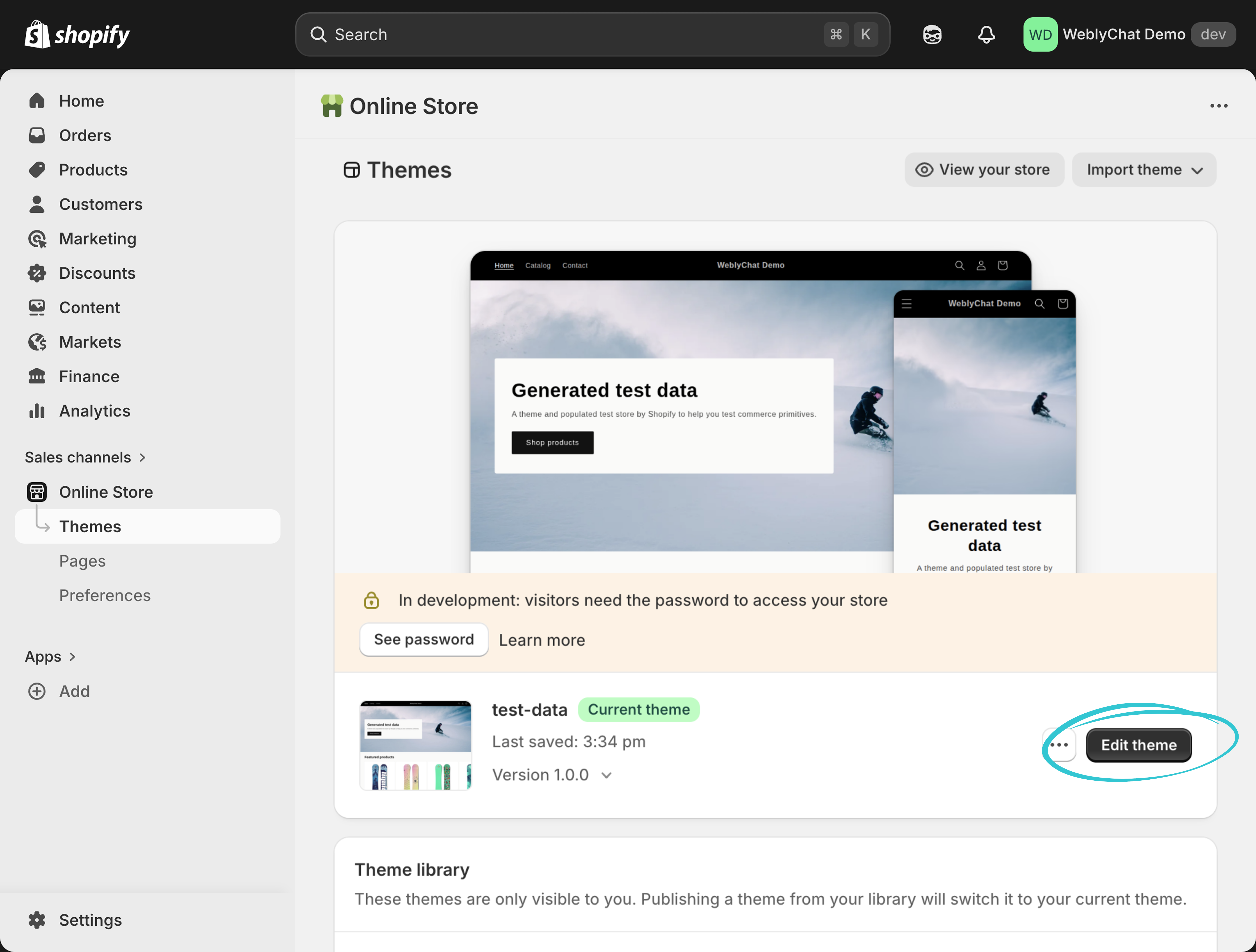
Shopify Themes page showing the active theme with Edit theme button highlighted

3. You are now in the Theme Editor. In the left sidebar, make sure you are on the Sections panel. Under Template, click Add section.
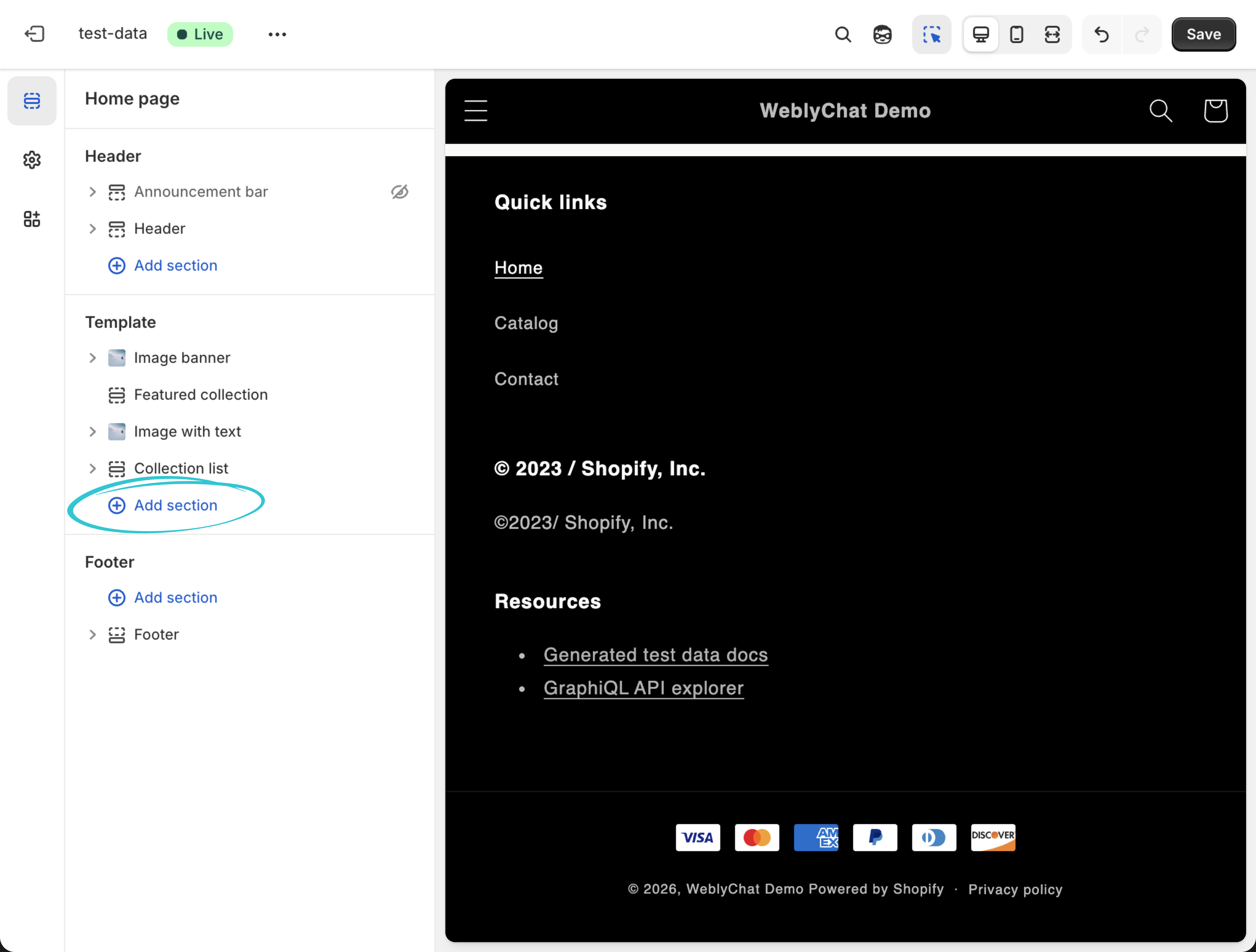
Shopify Theme Editor sidebar showing the Add section button under Template

4. A search pop-up will appear. Type custom liquid and you will see Custom Liquid appear in the results. Click it.
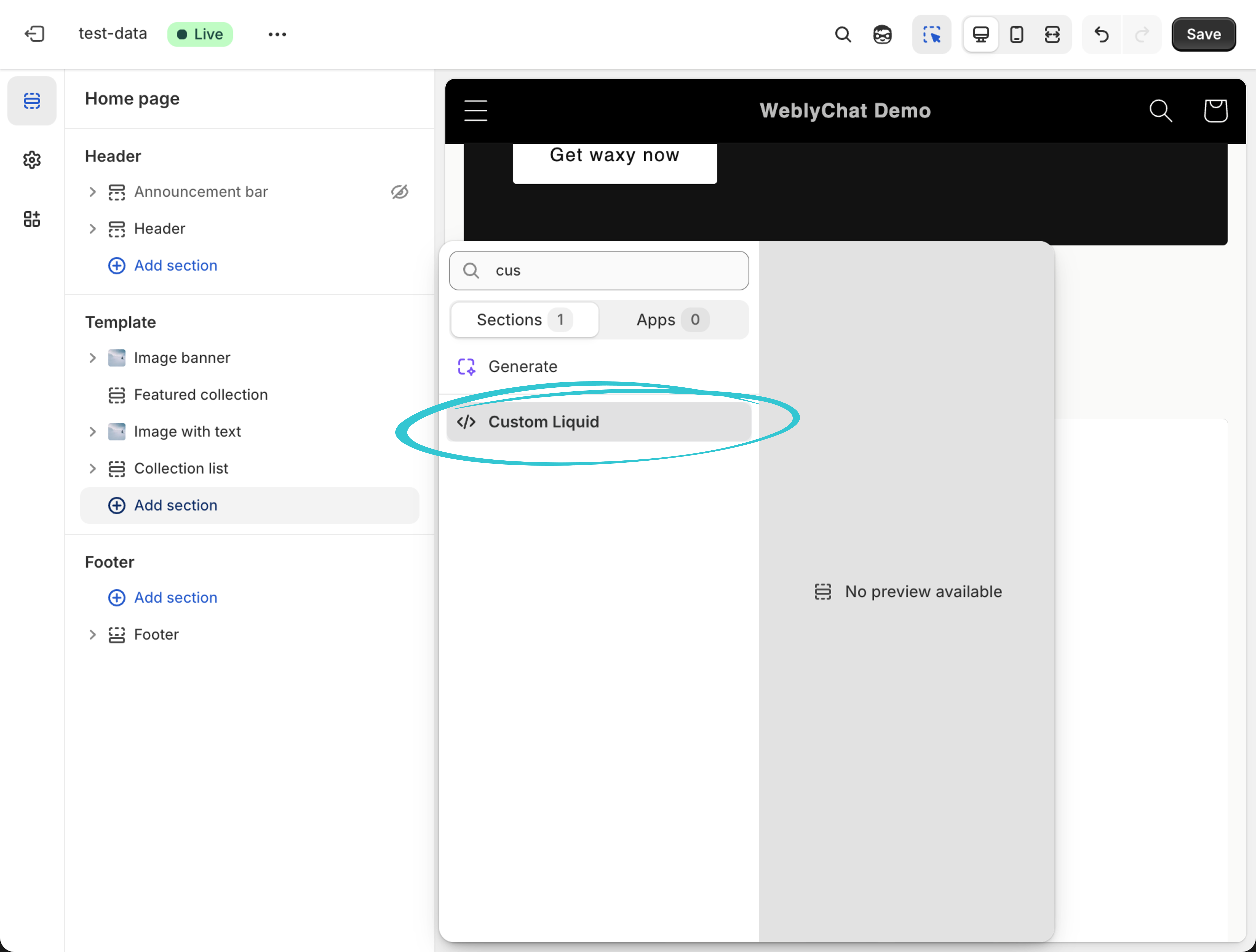
Shopify Theme Editor section search showing Custom Liquid result highlighted

5. The Custom Liquid panel opens on the left. Paste your WeblyChat embed code into the Custom Liquid text field. Then click Save in the top right corner.
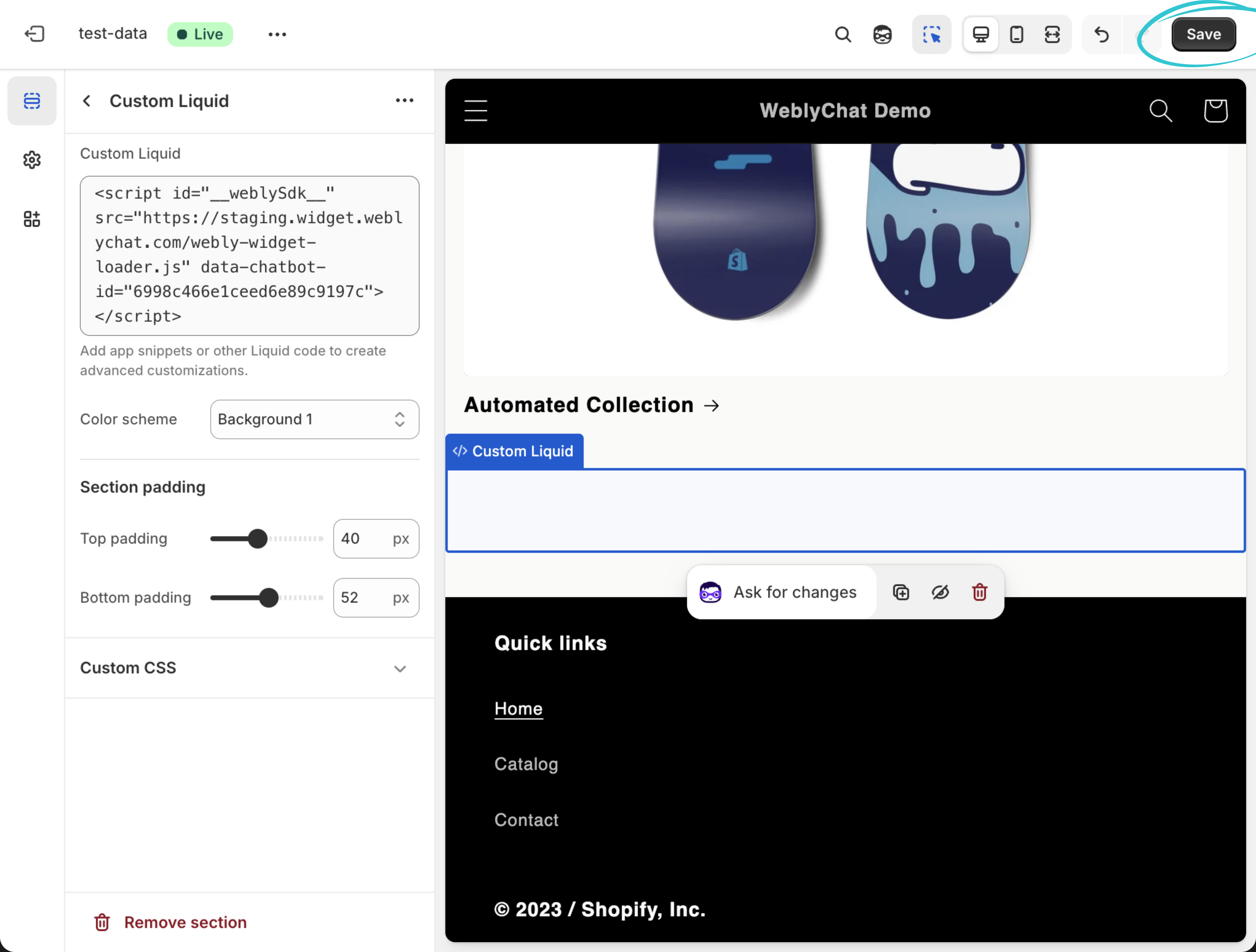
Shopify Theme Editor Custom Liquid panel with WeblyChat embed code pasted and Save button highlighted

6. You Are Live

Visit your Shopify store and you should see the chatbot widget in the corner. That is it.
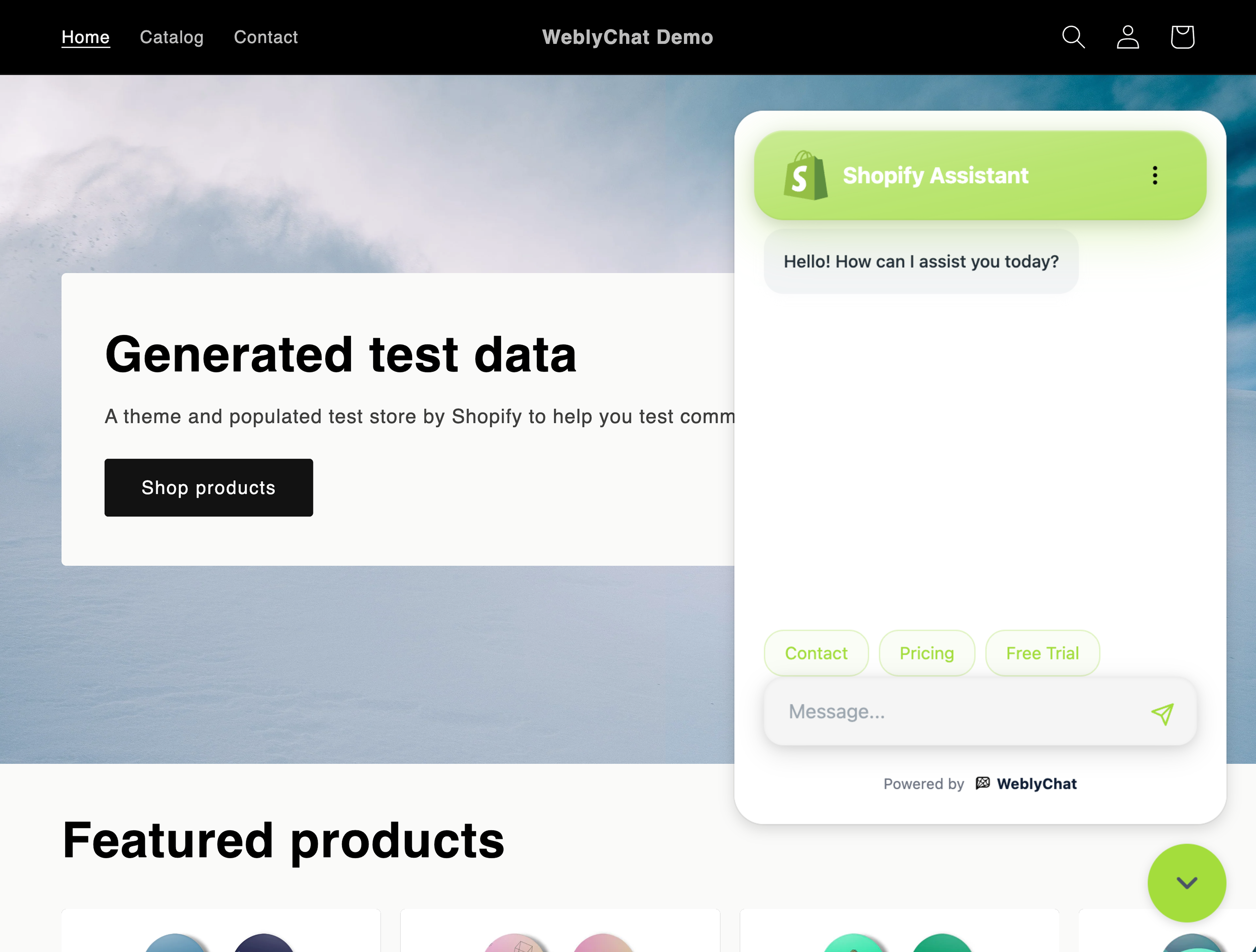
Shopify storefront with WeblyChat chatbot widget open and responding to a shopper question

Any changes you make in your WeblyChat dashboard (colors, welcome message, training data) update instantly without touching your Shopify theme again. You only paste the code once.

Ready to get started? Create your free WeblyChat account and have your Shopify chatbot live in under 5 minutes. The free plan includes 30 messages per month, enough to see your first real shopper conversations this week.


The Best Shopify Chatbot for Small Store Owners in 2026

Shopify makes it easy to build a professional online store without a developer. Adding a Shopify chatbot should be just as simple. You should not need to build conversation flows, manage a live chat queue, or pay for a complex enterprise tool just to answer shopper questions.

The reality for most Shopify store owners is that you are running everything yourself. You are managing inventory, processing orders, handling customer emails, and trying to grow your store at the same time. When a shopper lands on your store at 11 PM with a question about your return policy or whether a product comes in a specific size, you are probably not sitting at your computer waiting to respond. That shopper leaves, and you never know they were there.

A Shopify AI chatbot trained on your store answers the questions your shoppers already have. Someone asks about your shipping timeline, and the chatbot pulls the answer from your shipping policy page. Someone wants to know if a jacket runs small, and the chatbot responds using the details on your product page. This is not about replacing you. It is about making sure every shopper gets a response, whether you are available or not.

Why a Free Chatbot for Shopify Is the Right Starting Point

WeblyChat has a free plan that includes a fully functional AI chatbot trained on your Shopify store, 30 messages per month, and zero credit card required. That is enough to see your first real shopper conversations and decide if it is worth upgrading. Most Shopify chatbot apps either have no free tier or offer a limited trial that expires. WeblyChat's free plan renews every month.

If you are looking for the best Shopify AI chatbot that does not require a developer, a flow builder, or an App Store installation, WeblyChat is built for exactly that use case.

Beyond the free plan, what separates WeblyChat from other options is how it installs. Most Shopify chatbot apps install through the App Store and add another monthly line item to your Shopify bill. WeblyChat takes a different approach: one line of code, pasted once into your theme. The AI runs externally, so your store stays fast and clean.

Here is why that matters for Shopify store owners:

  • No app fees. Shopify App Store apps add to your monthly costs. WeblyChat is billed directly, with no Shopify surcharge or revenue share.
  • No app conflicts. Shopify apps can conflict with each other or slow down your storefront. WeblyChat loads asynchronously from an external script, so it never touches your app stack.
  • Works on any theme. The same code snippet works on Dawn, Debut, Impulse, Prestige, and any custom theme. There is nothing to configure per-theme.
  • No update maintenance. You never need to update a chatbot app version or check compatibility with new Shopify releases.

How WeblyChat Compares to Shopify Inbox

Shopify Inbox is the built-in messaging tool that comes with every Shopify plan. It is a solid live chat option if you have the time to respond to every message manually. But if you are running a store solo or with a small team, live chat creates an expectation you may not always be able to meet.

WeblyChat is not a live chat replacement. It is an AI layer that handles the questions shoppers ask before they are ready to reach out to a human. Product questions, policy questions, shipping questions. The chatbot answers them instantly, 24/7, using your actual store content. When a shopper does need to talk to a real person, the built-in contact form (available on paid plans) gives them a direct line to your inbox.

The two tools serve different purposes. Shopify Inbox is reactive. WeblyChat is proactive.

Shopify Chatbot Comparison

Not all Shopify chatbots work the same way or cost the same. Here is how WeblyChat stacks up on the features that matter most for store owners.

Feature
WeblyChat
Shopify Inbox
Tidio
Chatling
AI Trained on Your Store
Yes, trains on your URL automatically
No (live chat only, manual responses)
Yes, via Lyro AI add-on ($39/mo extra)
Yes, trains on your URL
Free Forever Plan
Yes, 30 msgs/mo (renews monthly)
Yes (live chat only, no AI)
50 one-time AI conversations (do not renew)
100 AI credits/mo
Starting Price (with AI)
$19.99/mo (1,500 chats)
Free (no AI on any plan)
$29/mo base + $39/mo for Lyro AI
$25/mo (3,000 AI credits)
Shopify Setup
Paste one embed code into theme.liquid
Built into Shopify admin (no setup needed)
Install app, connect account, configure AI
Paste embed code, then build flows in dashboard
Answers 24/7 Without You
Yes, fully automated AI responses
No, requires manual replies
Yes (with Lyro AI add-on)
Yes
Best For
Store owners who want AI trained on their catalog, live in minutes
Stores with staff available to respond to messages in real time
Teams that need live chat first and want to add AI later
Users who want a complex visual flow builder and are okay with per-credit AI pricing

Pricing and features verified February 2026. Visit each provider's website for the most current information.

All four options can add a chat experience to your Shopify store. Shopify Inbox is the right tool if you want to handle conversations manually and have the time to do it. Tidio is a solid live chat platform that offers AI as a paid add-on. Chatling offers AI training and a visual flow builder, but charges per AI credit once you exceed your plan limit. WeblyChat is the fastest Shopify chatbot app to get live: paste one code snippet, point it at your store URL, and your chatbot is answering shopper questions in minutes.

For more detailed setup guides and advanced features, visit our documentation.

Frequently asked questions

Do I need to install a Shopify app to use WeblyChat?

No. WeblyChat uses a simple embed code that you paste into your Shopify theme using the built-in Theme Editor. There is no app to install from the Shopify App Store, no marketplace dependency, and no extra fees from Shopify. You manage everything from your WeblyChat dashboard.

What is the best chatbot for Shopify?

The best Shopify chatbot depends on your needs, but for store owners who want an AI-powered chatbot trained on their actual product catalog and store content, WeblyChat is built for exactly that. It trains on your Shopify store automatically, answers shopper questions 24/7, and takes under 5 minutes to set up with no coding required.

Is there a free chatbot for Shopify?

Yes. WeblyChat offers a free plan that includes an AI chatbot trained on your Shopify store, up to 30 messages per month, and one chatbot deployment. You can add the chatbot to your store at no cost and upgrade later if you need more messages or features.

How is this different from Shopify Inbox?

Shopify Inbox is a live chat tool that requires you or a team member to be online and respond manually to every message. WeblyChat is AI-powered. It handles conversations automatically using your store content, 24/7, without anyone needing to be online. You can review every conversation in your dashboard afterward.

Will the chatbot slow down my Shopify store?

No. The WeblyChat script loads asynchronously, which means it does not block your storefront from rendering. Your Shopify page speed and Core Web Vitals remain unaffected.

How do I add a chatbot to my Shopify store?

Sign up for a free WeblyChat account, enter your Shopify URL to train the AI, then copy your embed code. In your Shopify admin, click Online Store in the sidebar, then click Edit theme on your active theme. In the Theme Editor, click Add section under Template, search for Custom Liquid, and select it. Paste your embed code into the Custom Liquid text field and click Save. Your Shopify chatbot is live. The whole process takes under 5 minutes.

What happens when I add new products or update my store?

WeblyChat's auto-crawl feature re-scans your store on a regular schedule: monthly on Essential, weekly on Pro, and daily on Premium. When you add new products, update prices, or change your policies, the chatbot's knowledge updates automatically. You can also trigger a manual re-crawl at any time on any plan.

Can the chatbot answer questions about specific products?

Yes. Because the chatbot trains on your Shopify product pages, it can answer questions about specific items: materials, sizing, availability, pricing, and more. It can also link shoppers directly to the product page or your checkout. The more detail you have on your product pages, the better the chatbot answers.

Frequently asked questions

No. WeblyChat uses a simple embed code that you paste into your Shopify theme using the built-in Theme Editor. There is no app to install from the Shopify App Store, no marketplace dependency, and no extra fees from Shopify. You manage everything from your WeblyChat dashboard.

The best Shopify chatbot depends on your needs, but for store owners who want an AI-powered chatbot trained on their actual product catalog and store content, WeblyChat is built for exactly that. It trains on your Shopify store automatically, answers shopper questions 24/7, and takes under 5 minutes to set up with no coding required.

Yes. WeblyChat offers a free plan that includes an AI chatbot trained on your Shopify store, up to 30 messages per month, and one chatbot deployment. You can add the chatbot to your store at no cost and upgrade later if you need more messages or features.

Shopify Inbox is a live chat tool that requires you or a team member to be online and respond manually to every message. WeblyChat is AI-powered. It handles conversations automatically using your store content, 24/7, without anyone needing to be online. You can review every conversation in your dashboard afterward.

No. The WeblyChat script loads asynchronously, which means it does not block your storefront from rendering. Your Shopify page speed and Core Web Vitals remain unaffected.

Sign up for a free WeblyChat account, enter your Shopify URL to train the AI, then copy your embed code. In your Shopify admin, click Online Store in the sidebar, then click Edit theme on your active theme. In the Theme Editor, click Add section under Template, search for Custom Liquid, and select it. Paste your embed code into the Custom Liquid text field and click Save. Your Shopify chatbot is live. The whole process takes under 5 minutes.

WeblyChat's auto-crawl feature re-scans your store on a regular schedule: monthly on Essential, weekly on Pro, and daily on Premium. When you add new products, update prices, or change your policies, the chatbot's knowledge updates automatically. You can also trigger a manual re-crawl at any time on any plan.

Yes. Because the chatbot trains on your Shopify product pages, it can answer questions about specific items: materials, sizing, availability, pricing, and more. It can also link shoppers directly to the product page or your checkout. The more detail you have on your product pages, the better the chatbot answers.